One Great World
SCC Song Common Usage
Common Usage
Specifying Recommended Details to Include in Details View
- Select "Folder"->"Properties" on the folder which attributes you wish to modify
- Go to "View"->"Details View"
- Select "SCC Song" under "Object type" (It might be hard to locate)
- To use recommended setup, make sure that the following attributes are selected:
- Icon, Real name, Song Name, Song Artist, Song Album, Song Format, Song Channels, Song Preference and finally Song Category. Notice that "Icon" and "Real name" is supplied by the system and not SCC Song.
Rating and Categorising of Songs
- The current version of SCC Song only allow you to alter the preference and category via the Properties notebook.
Including Songs in a Folder
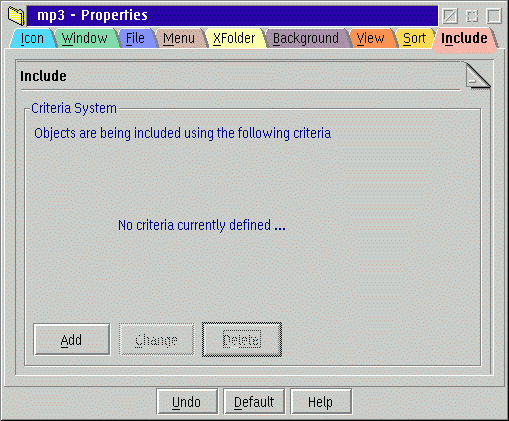
- Select "Folder"->"Properties" on the folder which attributes you wish to modify
- Go to the "Include" page
- Use the "Delete" push button to remove the default criteria - which includes all files except those that are hidden
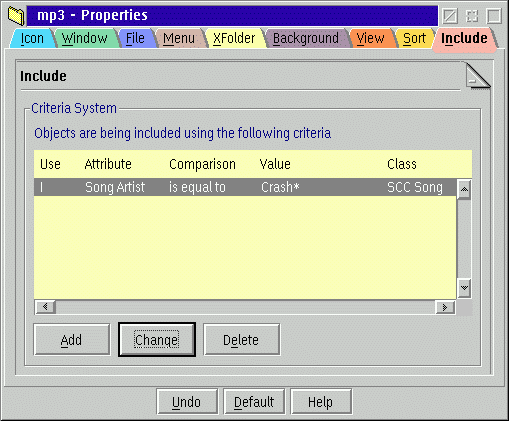
- Use the "Add" push button to add an include criteria (look for those attributes starting with Song). On the screen shot below is shown how to configure a folder only to include files that are made by song artists starting with "Crash".
Sorting Songs in a Folder
- Select "Folder"->"Properties" on the folder which attributes you wish to modify
- Go to "Sort" - Please note that this feature is unfortunately not working with XFolder or XWorkplace
- Select "SCC Song" under "Object type" (It might be hard to locate)
- Set the "Default sort attribute" to what ever you prefer
Locating Songs
- Select "Edit"->"Find..." from the folder. ("Find Objects"-dialog opens)
-
Use the "More..." push button and specify your search criteria.
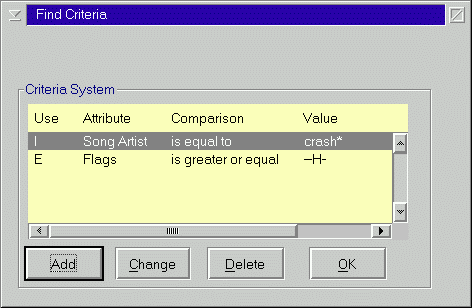
If you want to find all songs made by artists starting with "crash":
- 1. Open the "Find Objects"-dialog
- 2. Click the "More..." push button (the "Find Criteria"-dialog opens)
- 3. Click the "Add" push button (the "Add Criteria"-dialog opens)
- 4. Select "Song Artist" from the "Attribute:" drop down list
- 5. Select "is equal to" from the "Comparison type:" drop down list (this is the default)
- 6. Set "Comparison value:" to "crash*"
- 7. Click the "Add" push button (you return to the "Find Criteria"-dialog)
- 8. Click the "OK" push button (you return to the "Find Objects"-dialog)
- 9. Click the "Find" push button
Configuring Colours and Fonts
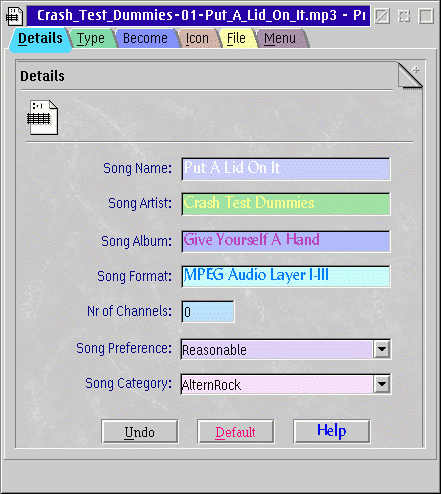
- Open the properties for any given SCCSong object and use the standard Font Palette and Color Palette (which both are located in the System Setup folder).
Supplying Additional Information
- Use the standard OS/2 comment, key phrase or subject fields (File pages in the object properties view)
Manual Setting a Datafile Object to be of Class SCC Song
OS/2 Warp 4.x or later
- Open the property view of the object you wich to change
- Select the "Become" page and choose "sccSong"
OS/2 Warp 3.x
- Delete (with a tool like "eautil.exe") the .CLASSINFO and .TYPE (if present) from the extended attributes
Getting the Version of SCC Song
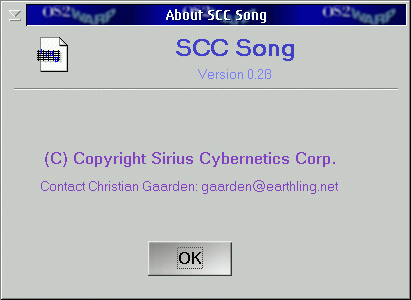
- Select a SCC Song datafile at random. Select from the popup-menu "Help"->"About SCC Song..."