Leave a note on any file, and keep it in view while you work.
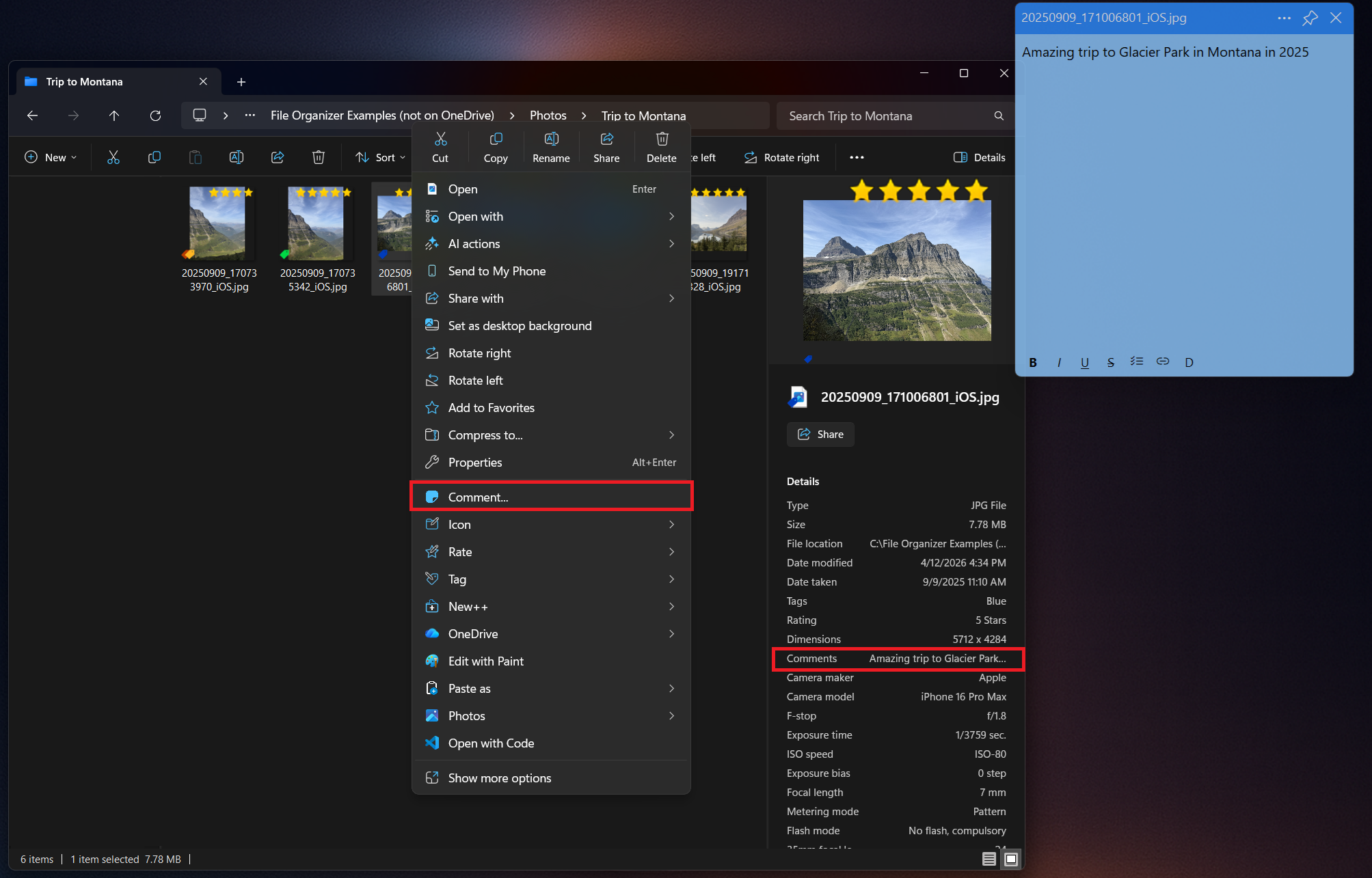
Some files need context that just doesn't belong in the filename. Commenting lets you right-click any file and attach a rich note - complete with bold, italic, checklists, and links - directly to it.
Pin the comment window on top so it stays visible while you work in other applications, and pick a color theme and opacity that suit you. Because comments are saved into the file's own Comments property, they travel with the file and show up in Explorer's Comments column and search.
Need step-by-step help? See the full Commenting guide →
Right-click it in Windows Explorer and choose Comment..., or select it and press Ctrl+Win+Alt+C.
Directly in the file's Comments property (or alongside it for formats that don't support embedded properties), so they travel with the file with no separate database.
Yes, comments show up in Explorer's Comments column and in Windows Search.
Yes, use the pin button to keep it always on top, and set separate opacity levels for when it's focused or unfocused.
One-time purchase. All features included. Free during Alpha & Beta.
