Leave a note on any file — and find the file by it later.
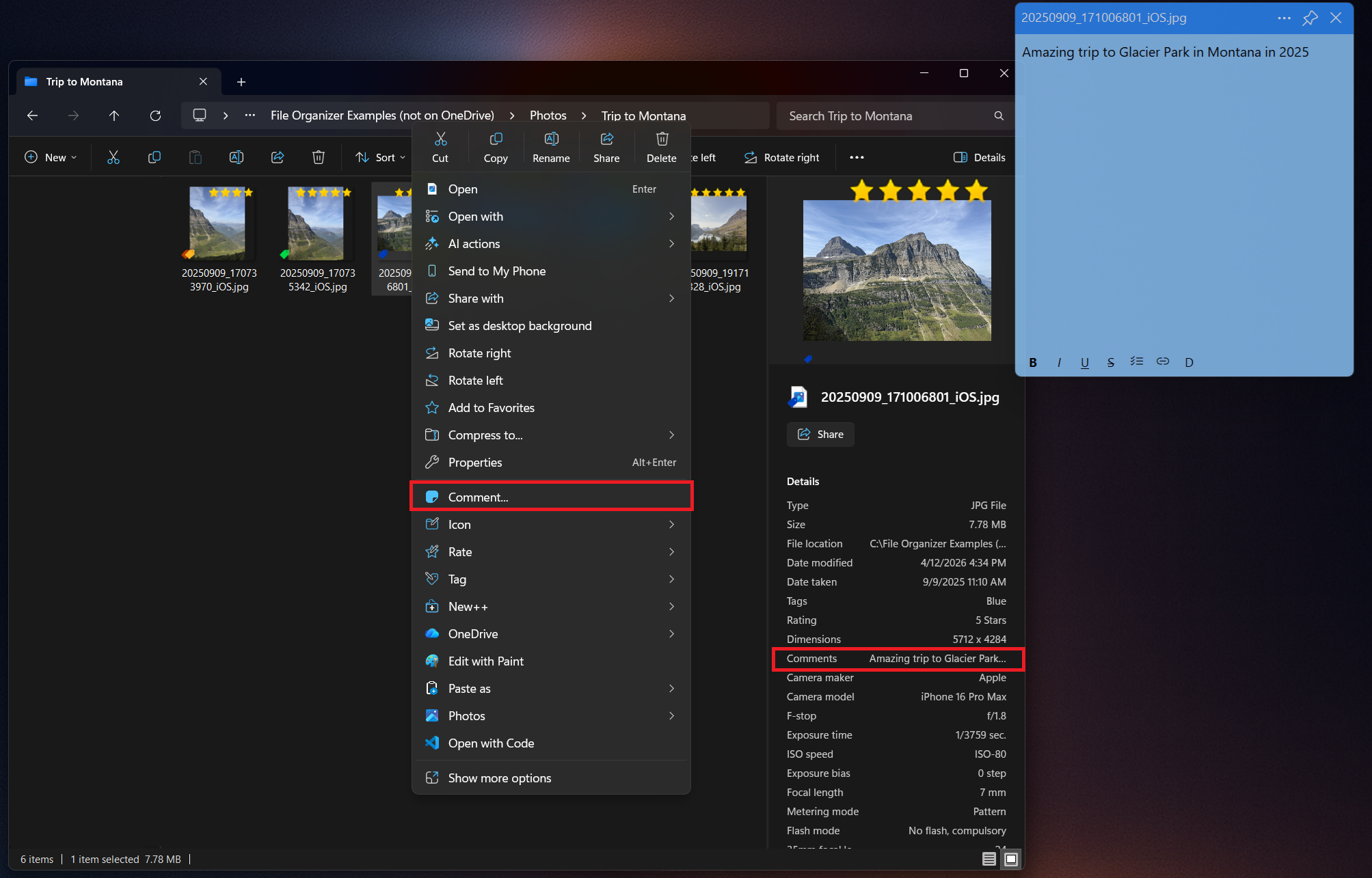
Quick answer: For photos and Office documents, open Properties > Details and type in the Comments field. For any file, PDFs included, select it, right-click and choose Comment... — or press Ctrl+Win+Alt+C — with Comment+ from Productivity Plus Pack. Comments show up in Explorer's Comments column and in Windows Search.
Why did you save this file? What still needs doing? Windows has a Comments field, but only for some file types, and only through the Properties dialog.
Comment+ from Productivity Plus Pack lets you add a formatted comment to a file from the right-click menu or a shortcut, keep it pinned on top while you work, and find the file by what you wrote.
Use what's built into Windows, the tools you already have, or Productivity Plus Pack — they work well together.
For file types that support it, such as photos and Office documents, you can type a comment in Properties > Details.
Comment+ comments on many more types, including PDFs, with formatting, a pin-on-top note window and a shortcut.
With Window+, Ctrl+Win+Alt+C comments on the file open in the app you're working in.
More about Comment+ · Full Comment+ guide · Read: Folders vs Tags: Which Is Better for Organizing Files? · Read: Why Windows Search Isn't Finding Your Files - and How to Fix It · More how-to guides
In the file's own Comments property, or alongside the file for formats that don't support it - so there's no separate database to keep in sync.
Yes. Comments show up in Explorer's Comments column and in Windows Search.
Yes. Pin it on top and set separate opacity for when it's focused and unfocused.
Use this idea in a real-world workflow.
Keep contracts, amendments and correspondence together, record document status and notes, and find the signed files again in File Explorer.
Start a client project from a template, distinguish working files from deliverables, and keep feedback and frequently used commands close to the files.
Collect research PDFs, review AI-assisted topic tags, record why sources matter and find relevant papers with tags, ratings and Explorer filters.
Try every feature free for 30 days, no account or credit card needed. After the trial, choose a one-time payment for the direct download or a monthly subscription for the Microsoft Store edition.
