Put your own tools and workflows right in the Windows right-click menu.
Start with useful scripts already included: back up a file, resize a JPEG for sharing, export PowerPoint slides as images, or copy a folder listing. Keep the commands you use and add your own alongside them.
Commands+ adds your own commands to the right-click menu in File Explorer. Point a command at any program or script, give it a name and an icon, and choose whether it runs as administrator, how its window opens, and whether a script window stays open when it's done.
Show each command only where it makes sense: on the desktop, on folders, on all files, or only on file types such as *.txt or *.jpg. Commands can pass the selected files to your program, ask you for a value before they run, and run with a hotkey.
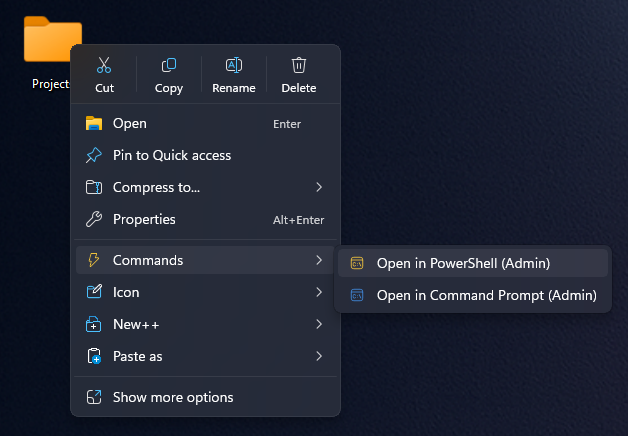
See how to add programs and scripts to the Windows context menu with Commands+.
"I can set my mostly used programs simply to my right-click."
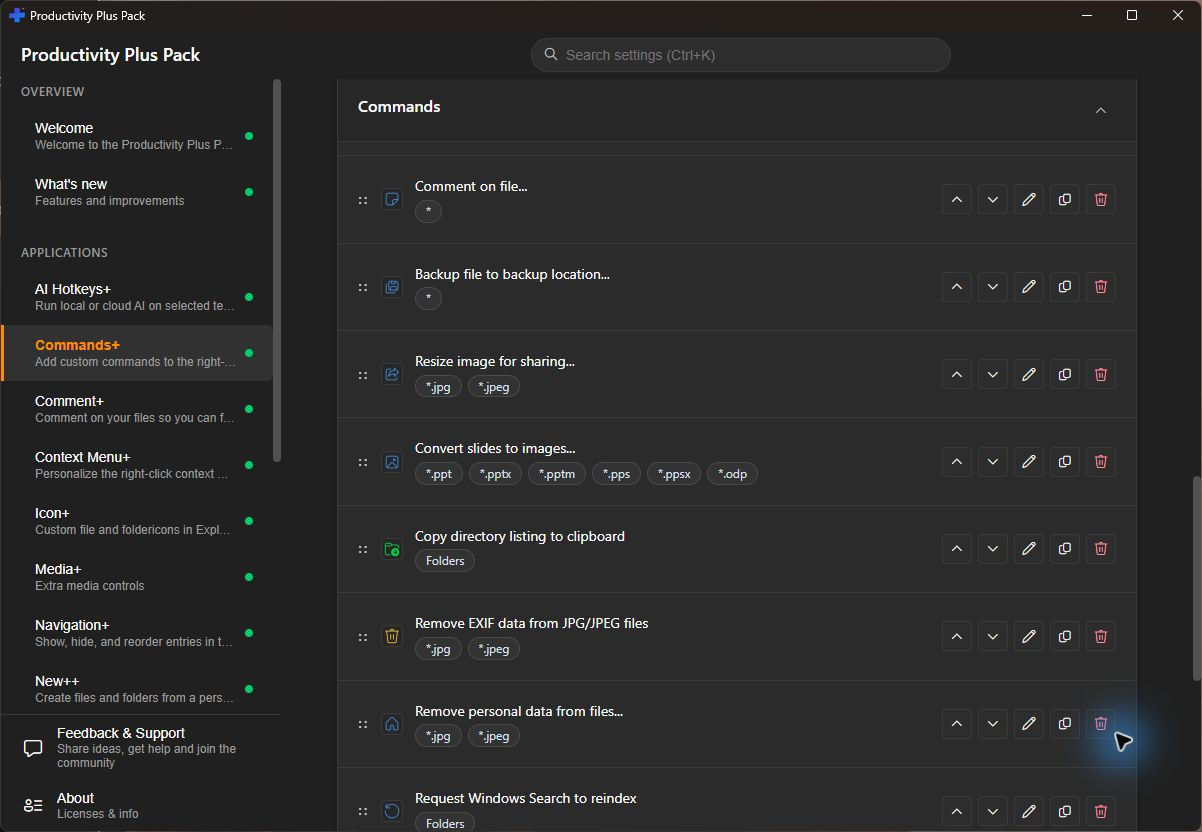
Add your first program to the right-click menu
Create a timestamped copy with Backup file, or use Backup file to backup location... to choose a destination and how much folder structure to keep.
Make a separate, smaller JPEG with the included image-resizing script. Choose a target file size; the original stays unchanged.
Export the first slide or every visible slide as PNG or JPG, with a choice of image widths. Requires Microsoft PowerPoint to be installed.
List the files and folders in a folder tree and copy their paths to the clipboard. The included script can also save the listing to a text file.
Strip embedded metadata from JPEGs without re-encoding the image. The script keeps color-profile and orientation information and creates a backup by default.
Run a selected .ps1 file with Run with PowerShell. Required parameters bring up an input form; Run with PowerShell... also lets you supply optional values. Script requirements determine the PowerShell host and whether administrator approval is needed.
Need step-by-step help? See the full Commands+ guide →
No. Commands+ includes commands and scripts for everyday file tasks. Open Commands+ in Settings to review their parameters, choose where they appear, or add your own.
Open Settings and select Commands+. Add a command, give it a name, and choose the program or script it runs. You can also set an icon, parameters and whether it runs as administrator.
Yes. Use variables such as $first_selected_path or $all_selected_paths in the parameters. A command can run once per selected item or once for the whole selection.
Yes. Use the Applies to options to show it on the desktop, on folders, on all files, or only on matching file types such as *.txt or *.jpg.
Commands+ creates your own commands. Context Menu+ shapes the menu around them: modern or classic style, which commands appear, and in what order.
Start a client project from a template, distinguish working files from deliverables, and keep feedback and frequently used commands close to the files.
Free 30-day trial, no account or credit card needed. Then one payment for every feature — no subscription.
