Your right-click menu, your rules - fewer distractions, more of what you use.
Do more from a right-click: reach favorite files and folders with Quick pins, explore folders with Quick browse, run PowerShell scripts, and give frequently used menu commands their own keyboard shortcuts.
Windows 11's right-click menu buries useful commands behind "Show more options," while the classic menu can get crowded with entries from apps you barely use. Context Menu+ puts you back in charge of both.
Choose a menu style, then use Customize... to arrange commands and submenus for each kind of right-click menu. Adjust the theme and keep frequently used actions close at hand. Pair it with Commands+ to add your own programs, scripts and input prompts.
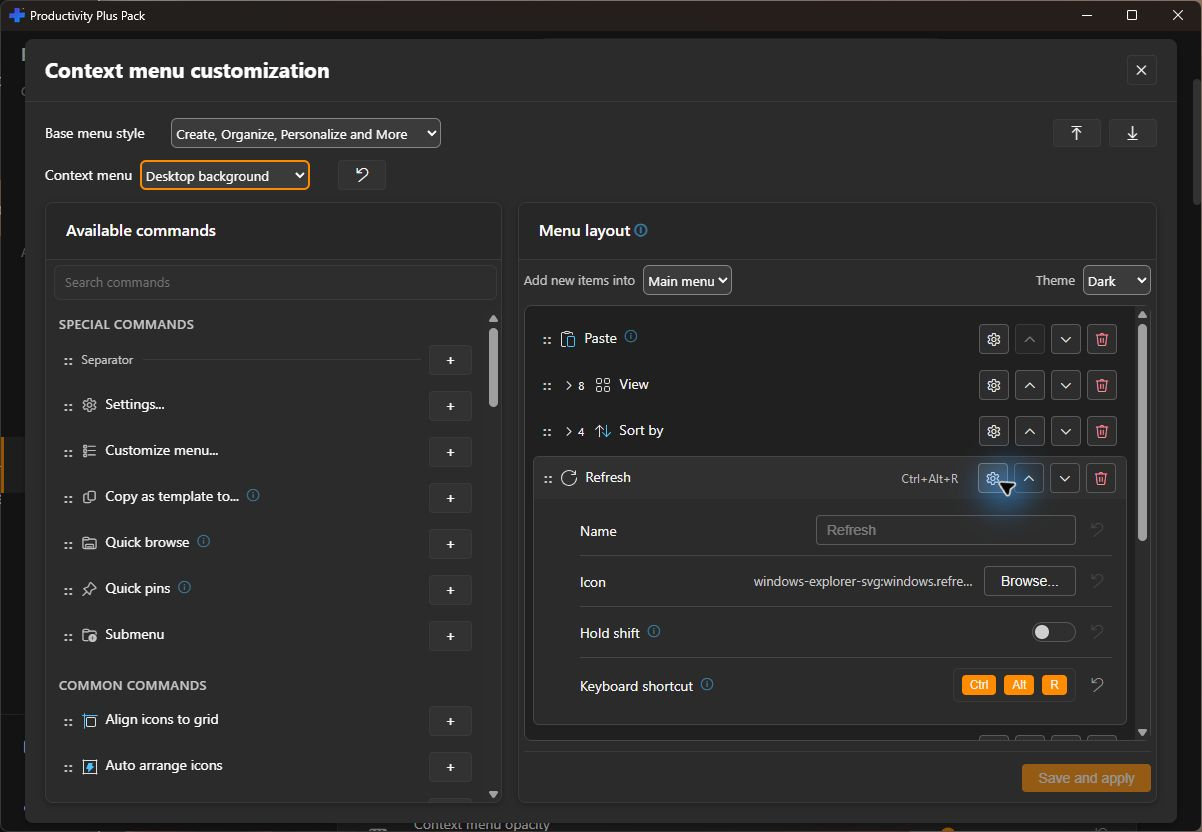
Choose a command in the menu layout to set its keyboard shortcut. Quick browse and Quick pins are available in the command list.
Watch the walkthrough of menu styles, the menu designer, themes and useful commands.
Watch on YouTube · Jump to the menu designer (5:42) · Appearance controls (11:23)
"I mainly just use it to customize the context menu (right click menu) exactly how I want it."
Customize your first menu step by step
Keep frequently used files and folders together in Quick pins, with groups for different projects. Use the same pins across menus, and show them in Explorer's navigation pane with Navigation+.
Browse a folder tree through nested menus, then open the item you need. Start from the current folder or choose a starting folder in the menu designer.
Assign a keyboard shortcut to an executable context-menu entry, including commands from other apps. Run it from File Explorer without reopening the menu. The shortcut follows the command across layouts; submenu headings and separators are excluded.
Right-click a .ps1 file to run it with the included Commands+ action. Scripts with required parameters show an input form, and declared PowerShell version or administrator requirements are respected.
Bring together New++ templates, Paste as a file, icon packs and photo and music organization. Arrange them where they fit your workflow.
Give files, file types, folders, drives, the desktop, Recycle Bin, Start button and taskbar their own layouts. Choose a theme and export your setup to reuse on another PC.
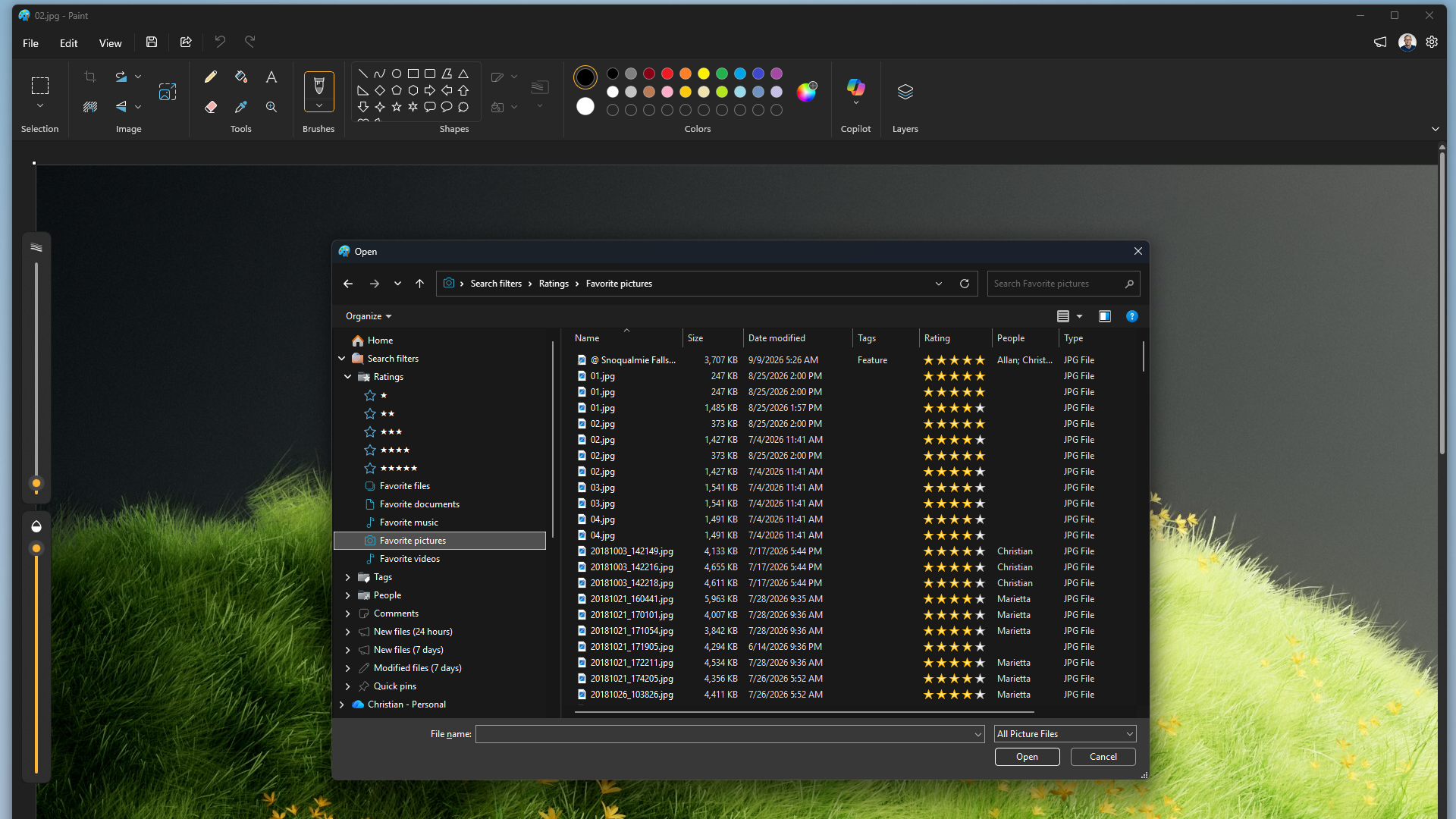
Need step-by-step help? See the full Context Menu+ guide →
Yes. Choose Customize... on the Context Menu+ page in Settings to design each right-click menu — for files, folders, drives, the desktop, the Recycle Bin, the Start button and the taskbar — choosing which commands appear, in what order and in which submenus.
Yes, open Settings and go to Context Menu+ to switch between the Windows 11 modern menu and the classic full context menu.
In the Modern and Classic sections of Settings, disable individual handlers - from other apps or from Productivity Plus Pack itself - to keep only what you need.
Yes. Open Commands+ in Settings to create commands with names, icons, variables and input prompts. Use Context Menu+ to arrange the menu around them.
Yes. In the menu designer, open the command's settings and set Keyboard shortcut. It runs from File Explorer and follows that command wherever it appears. Shortcuts apply to executable commands; submenu headings and separators do not run an action.
Start a client project from a template, distinguish working files from deliverables, and keep feedback and frequently used commands close to the files.
Free 30-day trial, no account or credit card needed. Then one payment for every feature — no subscription.
