Leave a note on any file, and keep it in view while you work.
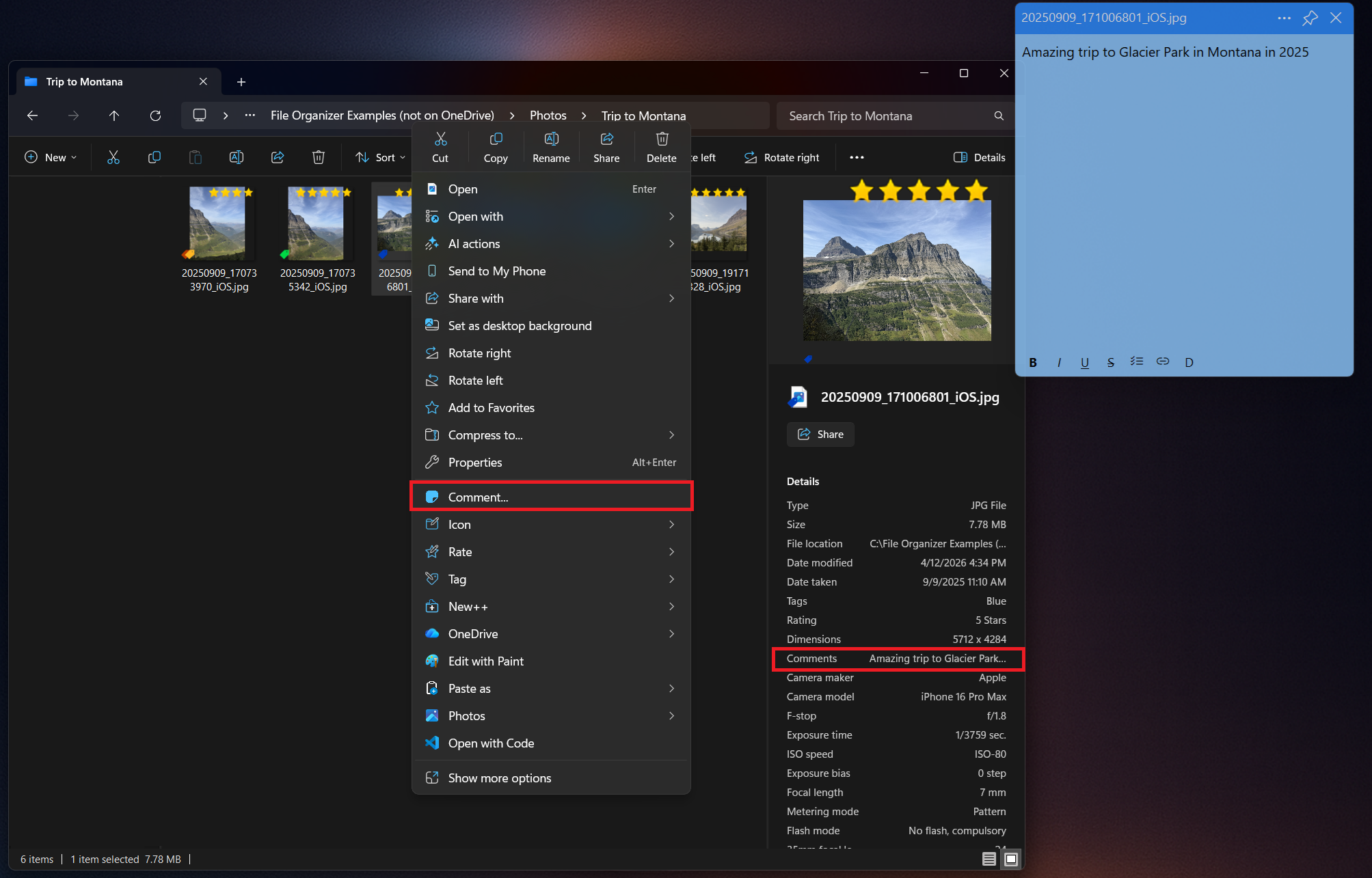
Some files need context that just doesn't belong in the filename. Comment+ lets you right-click any file and attach a rich note - complete with bold, italic, checklists, and links - directly to it.
Pin the comment window on top so it stays visible while you work in other applications, and pick a color theme and opacity that suit you. Comments use Windows file metadata, with storage depending on the file format and property handler. Explorer can display them in its Comments column, and indexed locations make them available to Windows Search.
Check supported file types, metadata storage and search requirements
Watch Comment+ in action: attach a note and keep useful context beside your work.
Need step-by-step help? See the full Comment+ guide →
Right-click it in Windows Explorer and choose Comment..., or select it and press Ctrl+Win+Alt+C.
Comments are accessed through the file's Comments property. Depending on the format and installed handler, storage may be embedded or use attached metadata. Verify that your copy, backup or sync tool preserves it.
Yes, where the file's property handler exposes comments. Add Explorer's Comments column, and keep the location indexed for Windows Search; the index may take time to update.
Yes, use the pin button to keep it always on top, and set separate opacity levels for when it's focused or unfocused.
Keep contracts, amendments and correspondence together, record document status and notes, and find the signed files again in File Explorer.
Start a client project from a template, distinguish working files from deliverables, and keep feedback and frequently used commands close to the files.
Free 30-day trial, no account or credit card needed. Then one payment for every feature — no subscription.
