Make File Explorer's navigation pane match the way you work.
The navigation pane on the left of File Explorer fills up with entries you never use. Navigation+ lets you show or hide each entry, move it higher or lower, and give it a new name, all from one page in Settings.
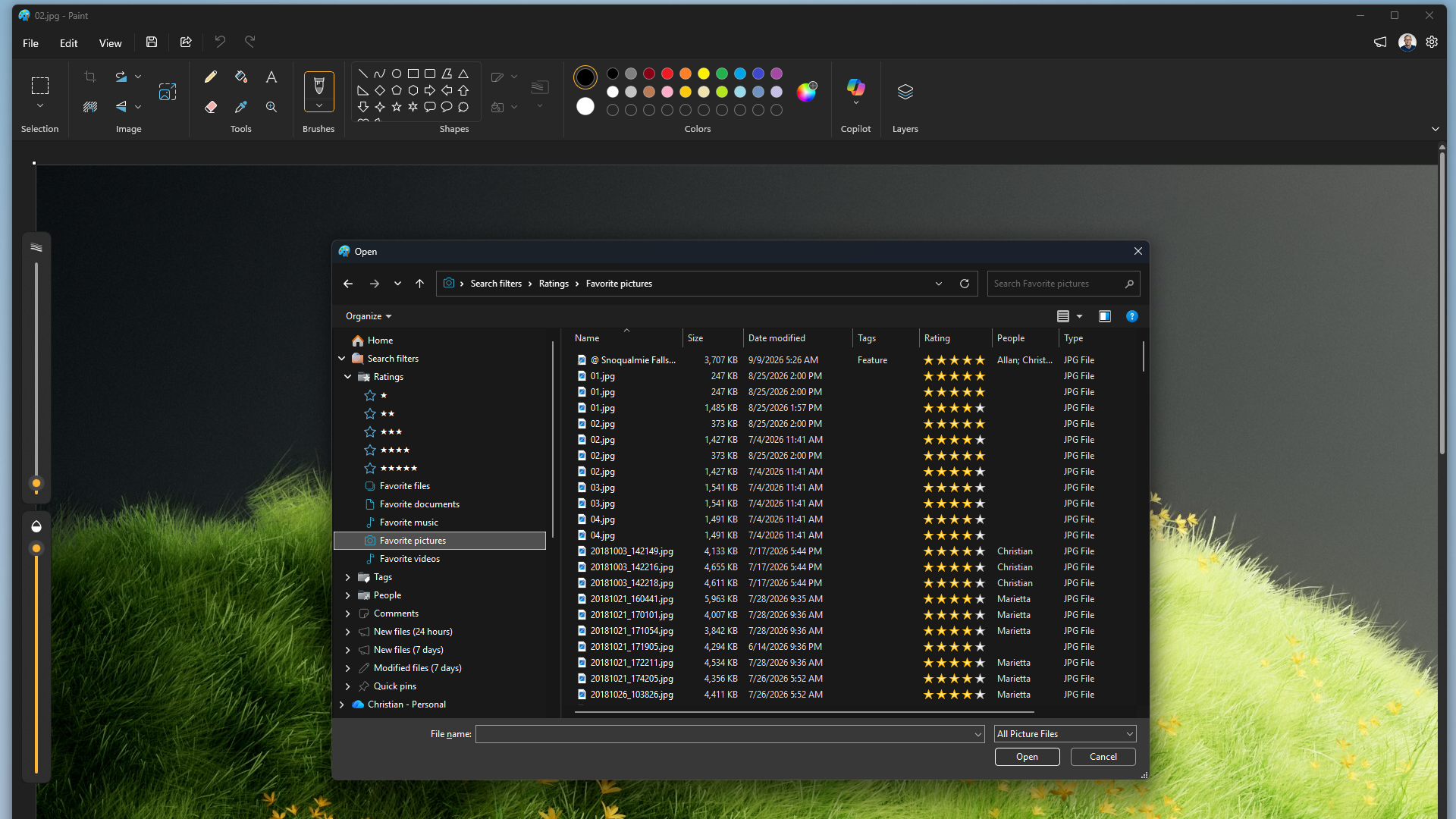
Choose where File Explorer opens, manage the Search filters section, and show your Quick pins from Context Menu+ in the navigation pane. Windows controls where some built-in entries can go, so Navigation+ shows what can be changed for each one.
Need step-by-step help? See the full Navigation+ guide →
Open Settings, select Navigation+, and turn off the switch beside the entry. Some Windows-managed entries need administrator approval to change.
Yes. Move supported entries between the Top, Upper, Lower and Bottom zones. Windows controls the placement of some built-in entries, so not every entry can go everywhere.
Yes. Select the rename control beside a supported entry, type the new name and save. Explorer may restart so the new name appears everywhere.
Use Restore defaults on the Navigation+ page to return the entries it manages to their default names, visibility and positions.
Free 30-day trial, no account or credit card needed. Then one payment for every feature — no subscription.
