Paste clean text anywhere, or paste your clipboard into a folder as a file.
Clean, unformatted text every time you paste
Copy text as you normally would, then press Ctrl+Shift+V instead of Ctrl+V. The text is inserted into the active app with all formatting stripped — no more mismatched fonts, colors, or sizes.
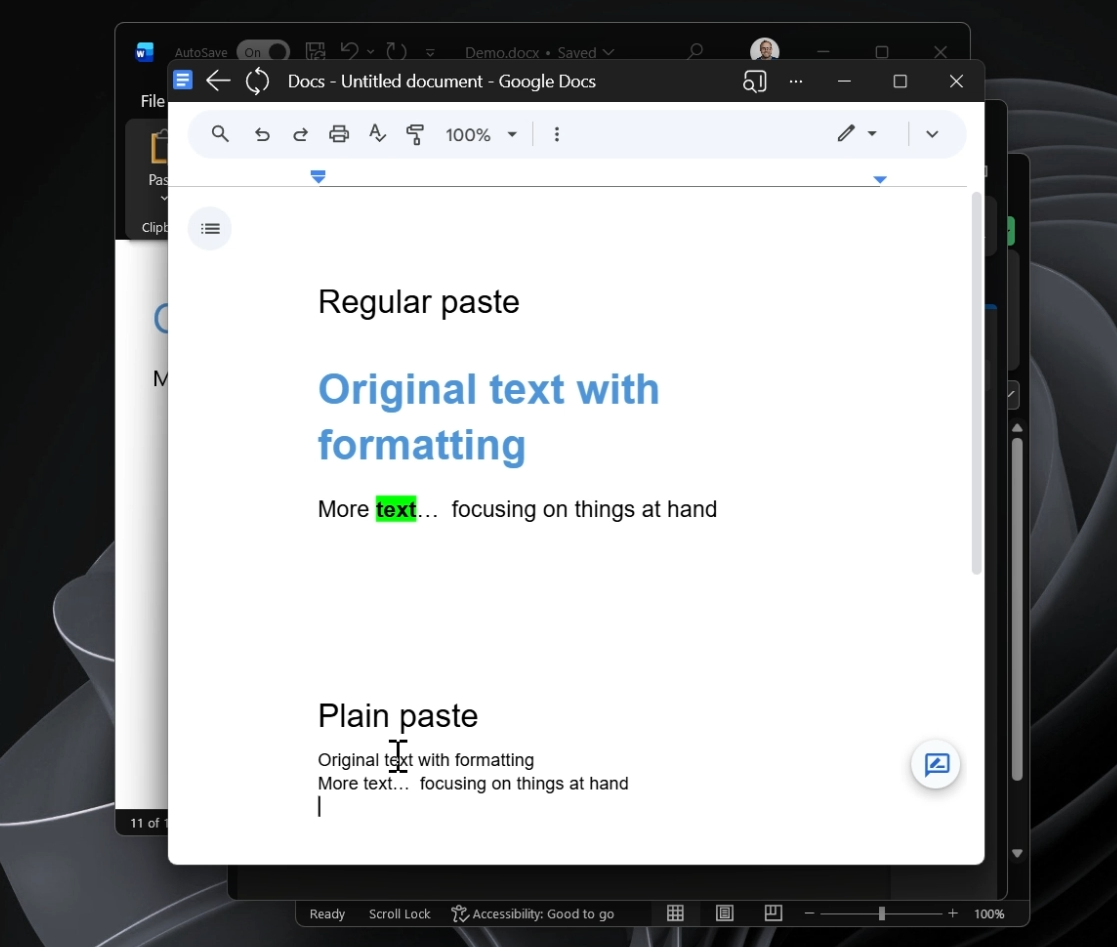
Open Settings, select Paste+, and find the Plain Paste section to change or turn off the shortcut.
Plain Paste works across virtually any Windows application, so you can move text between programs without cleaning up the formatting afterward.
Turn whatever's on your clipboard into a file, right in the folder you're in
Copy something — text, a link, an image — then right-click empty space inside a folder and choose Paste as. A submenu shows the formats you can paste as, based on what's on your clipboard. In File Explorer or on the desktop, you can also press Ctrl+Alt+V; change or turn off this shortcut in the Paste as section of the Paste+ page.
With an image on your clipboard, Paste as offers Bitmap, Icon, JPG or PNG — pick one and the image is saved as a new file in the current folder.
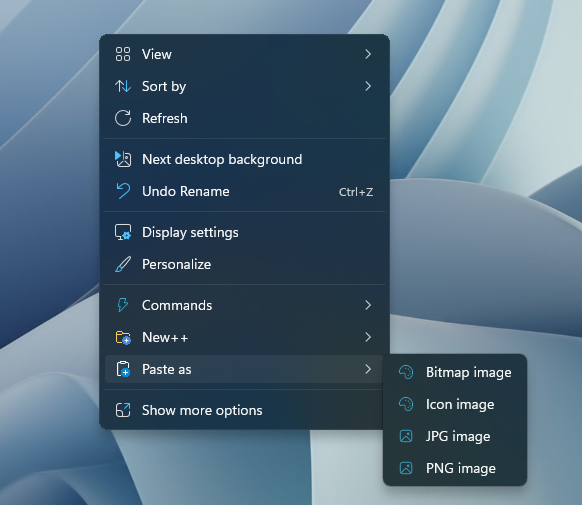
With text or a link copied, you can create a file shortcut or URL shortcut (plus a URL QR code), or save the content as an HTML, Markdown or plain text file. If your clipboard has both text and an image (for example, copied from OneNote), Paste as offers combined HTML+image, Markdown+image, or text-file options too.
