Recognize and organize the people in your photos with private, on-device AI.
Open Settings and select People+. Review and accept the consent information, enable People recognition, and choose the photo-library locations to scan. Recognition runs only on the locations you have selected.
Face detection, matching, and grouping run locally on your computer. Your photos and face data are not uploaded to a recognition service. You can also restrict processing to times when the computer is idle.
People+ groups similar faces and presents likely matches for review. Confirm a suggestion, reject it, or assign the face to a different person. Lower-confidence detections remain available for manual review rather than being silently assigned.
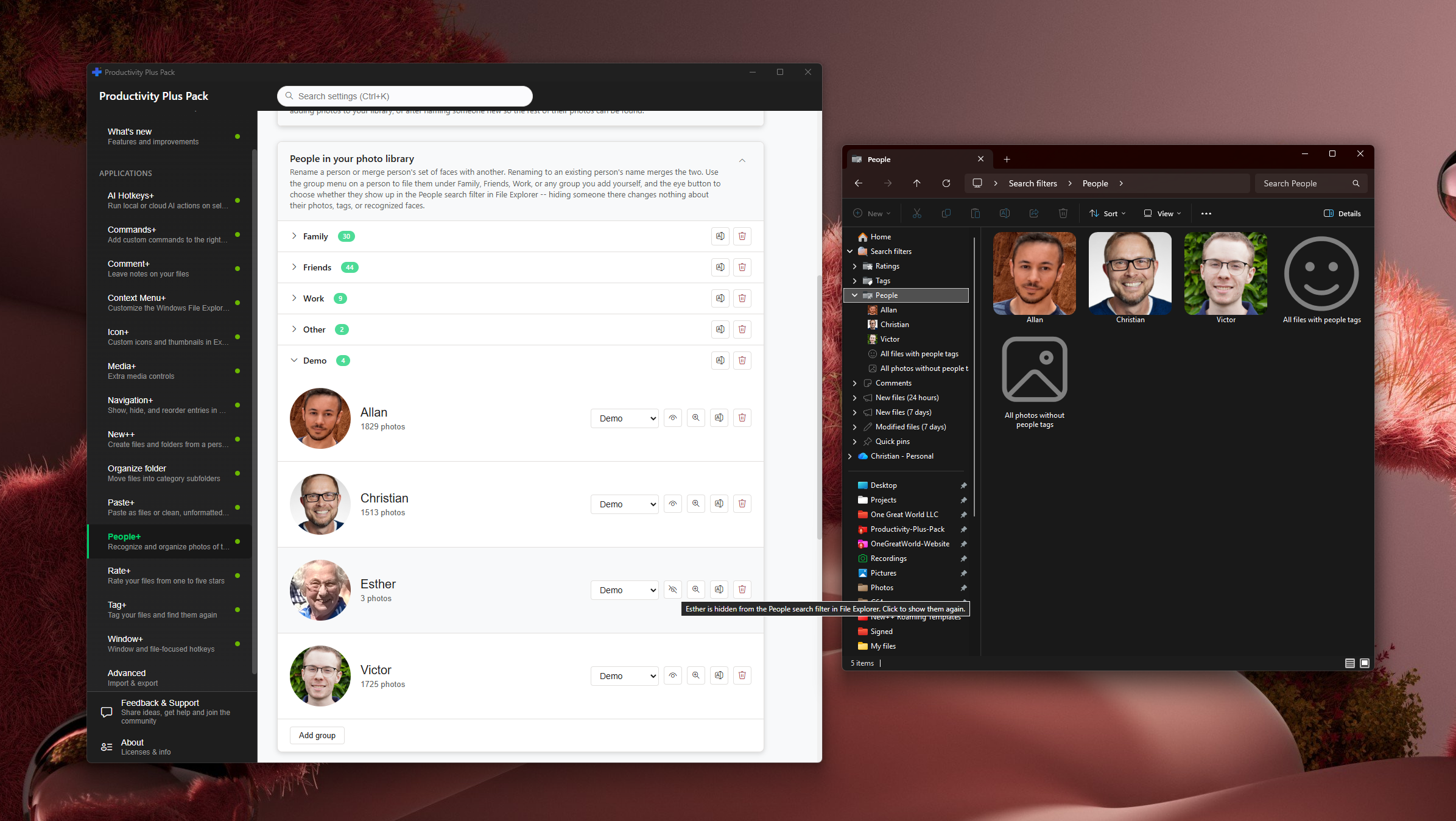
Rename recognized people, merge duplicate identities, organize people into groups, or forget a person. These controls let you correct the library as recognition improves.
People+ can write recognized names and standard face-region metadata to supported photos, making people information available to compatible applications and Windows Explorer. Use the People+ settings to control which metadata is written automatically.
You can forget one person or delete all locally stored face-recognition data from the People+ page. Because deleting data cannot be undone, review the confirmation before continuing. Metadata already written into photo files is managed separately.
When enabled, the Recognize faces command is available from the supported right-click menu. Completion notifications can take you directly to People+ to review the results.
