Pin windows on top, control their transparency, and jump straight to the file behind them.
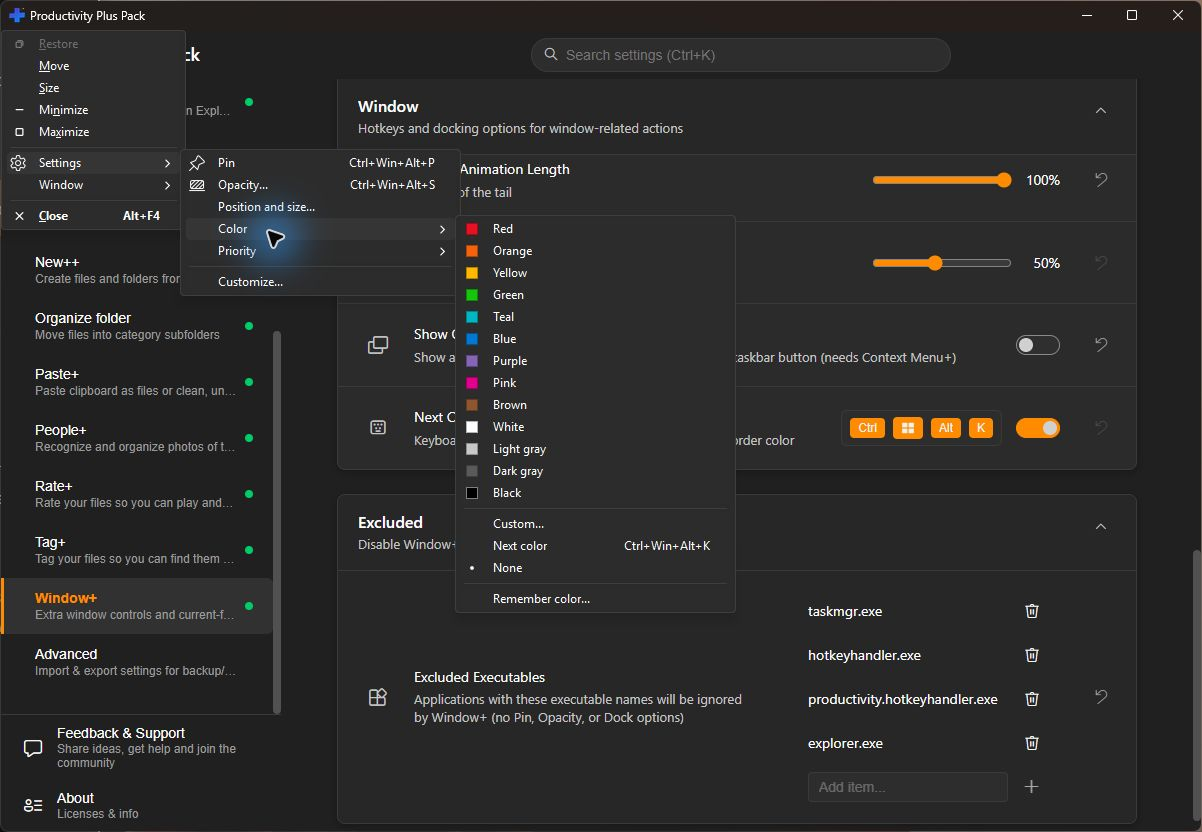
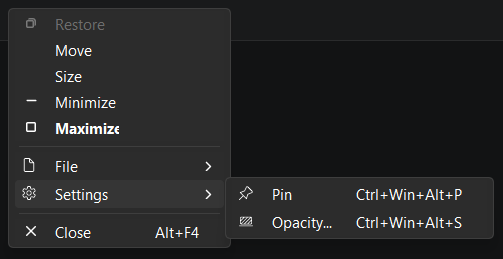
Press Ctrl+Win+Alt+P to pin or unpin the current window so it stays on top of others. You can also do this from the window's system menu (right-click its title bar, or press Alt+Space).
Press Ctrl+Win+Alt+S, or choose Opacity... from the window's system menu, to open an opacity dialog for the current window. Window+ remembers your transparency and pin settings per application, so they're restored the next time you open it.
Choose Settings > Position and size... from the window's system menu. Pick whether the setting applies to all of the program's windows, to windows of one window class, or to windows whose title contains some text. Then either click Save current position and size, or choose Maximize on monitor and pick a display. Apply now moves the window right away. To have matching windows open that way automatically, turn on Apply when a matching window opens. It's off by default.
Choose Settings > Priority from the window's system menu and pick High, Above normal, Normal, Below normal, or Low. To have the app start at that priority every time, turn on Restore priority when this app opens. It's off by default.
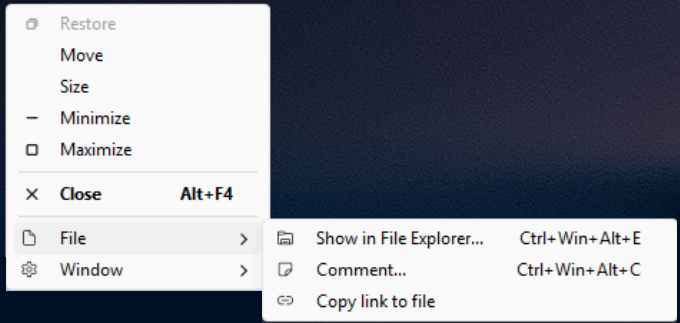
Press Ctrl+Win+Alt+E, or use the system menu's File submenu, to show the file the active window has open in File Explorer. From the same submenu you can comment on that file or copy a link to it directly to your clipboard.
Press Ctrl+Win+Alt+Shift+Left or Ctrl+Win+Alt+Shift+Right to dock the active window to that side of the screen. Press Ctrl+Win+Alt+Shift+Down to undock it. You can change these shortcuts and the docked width in Settings.
Open Settings to set pin or opacity rules for specific applications or window titles, or to exclude certain applications from Window+ entirely.
Yes. Open the window's system menu (Alt+Space or right-click its title bar), then choose Settings > Color. Pick a preset or custom color, or use Next color. Remember color... can match a program, window class or window title, so different windows of the same app can have different colors.
Configure Dock Left, Dock Right and Undock shortcuts and dock width in Window+ Settings. Enable Show Colors on Taskbar for matching taskbar indicators; this requires Context Menu+.