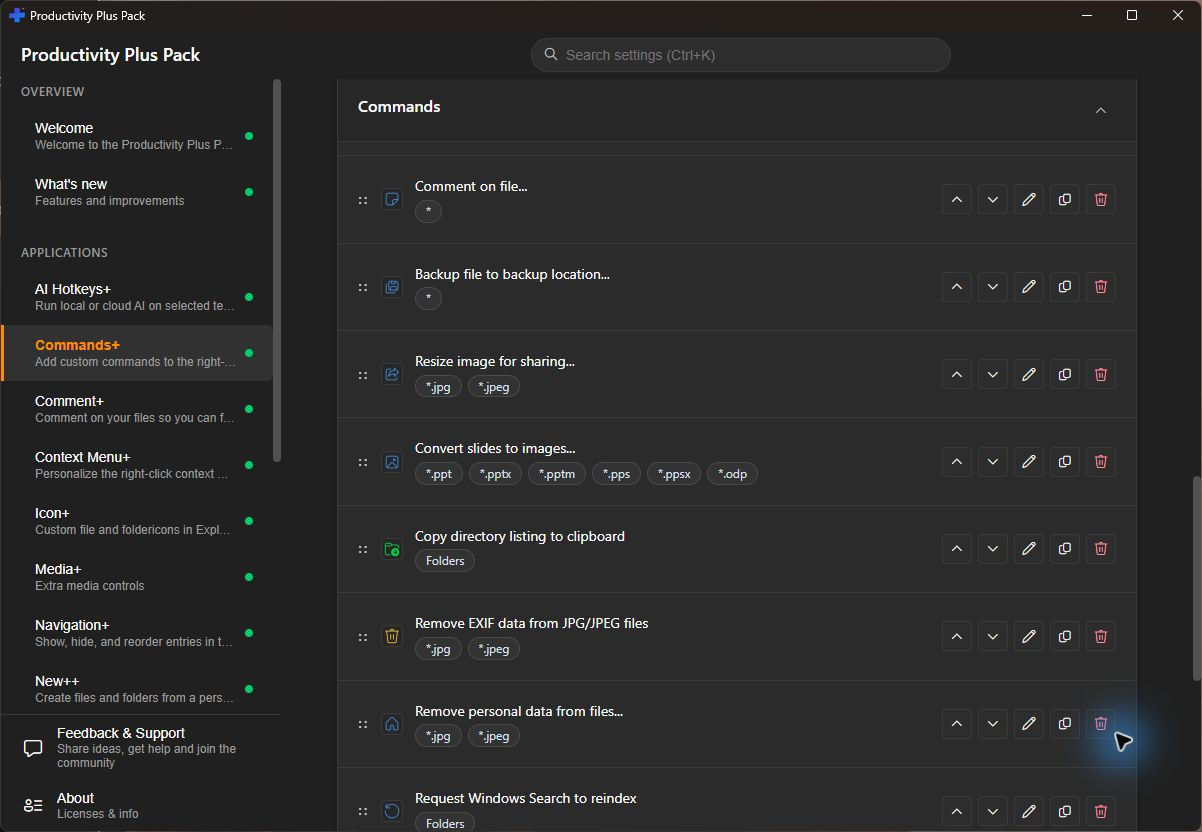
Put your own tools and workflows directly in the Windows right-click menu.
Open Settings and select Commands+. Add a command, give it a name, and select the program or script it should run. You can also choose an icon, pass parameters, run as administrator, control the window state, and decide whether a script window stays open.
Use the Applies to options to show a command for the desktop, folders, all files, or only
matching file types such as *.txt or *.jpg. A command can run
once per selected item or once for the full selection.
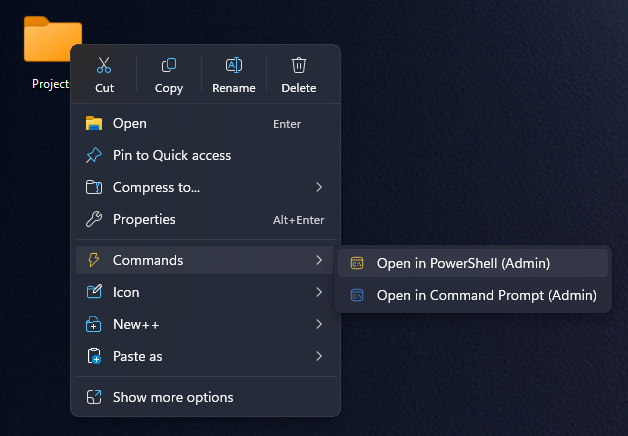
Parameters can include $first_selected_path, $all_selected_paths,
$PPP_Directory, and Windows environment variables such as
%USERNAME%. Commands+ replaces them when the command runs.
Add an input variable to a command when you want to ask for a value before it runs. Inputs can provide labels, defaults, remembered values, or a list of choices, and the selected value is inserted into the command parameters.
While File Explorer or the desktop is focused, press Ctrl+Win+Alt+G followed by a number key (1-9) to run the corresponding enabled command. The leader shortcut can be changed or disabled in Settings.
Commands+ controls your custom commands. To switch between the Windows 11 Modern and Classic menus or hide other menu handlers, use Context Menu+.
Create a timestamped copy with Backup file, or use Backup file to backup location... to choose a destination and how much folder structure to keep.
Make a separate, smaller JPEG with the included image-resizing script. Choose a target file size; the original stays unchanged.
Export the first slide or every visible slide as PNG or JPG, with a choice of image widths. Requires Microsoft PowerPoint to be installed.
List the files and folders in a folder tree and copy their paths to the clipboard. The included script can also save the listing to a text file.
Strip embedded metadata from JPEGs without re-encoding the image. The script keeps color-profile and orientation information and creates a backup by default.
Run a selected .ps1 file with Run with PowerShell. Required parameters bring up an input form; Run with PowerShell... also lets you supply optional values. Script requirements determine the PowerShell host and whether administrator approval is needed.