Let AI tag your files for you — privately, on your own PC.
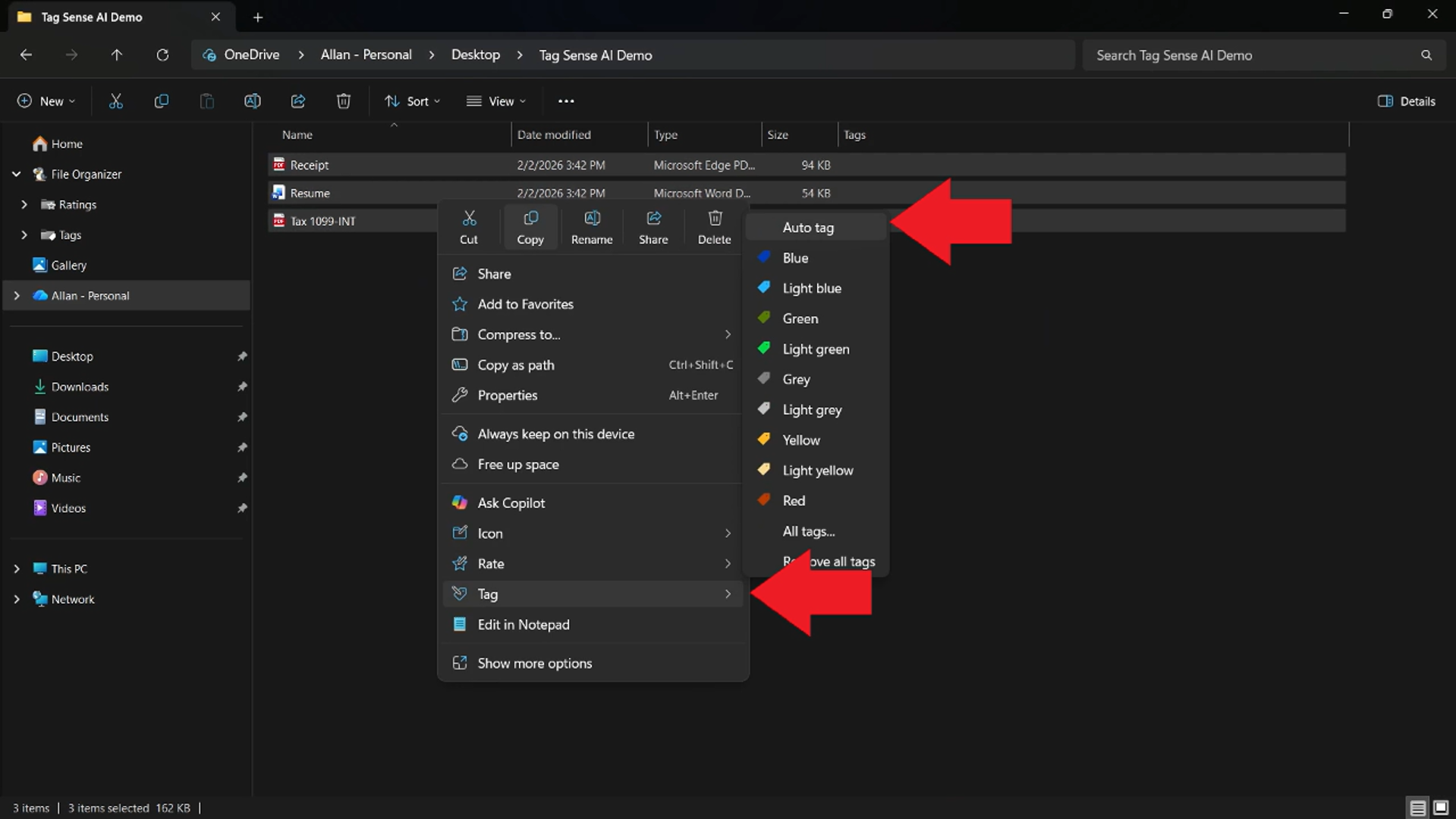
Quick answer: Windows doesn't tag files for you. With Tag Sense AI in Productivity Plus Pack, select files in File Explorer, right-click and choose Auto-Tag. An AI model running on your own PC reads PDFs, Word documents, text files and images and applies tags. The first time, you're guided through installing Ollama and a model.
Tagging makes files easy to find — but tagging hundreds of files by hand is exactly the kind of job nobody gets around to.
Tag Sense AI from Productivity Plus Pack reads your documents and images with AI that runs on your own PC and applies tags that work with the filters in File Explorer.
Use what's built into Windows, the tools you already have, or Productivity Plus Pack — they work well together.
Windows Search indexes the text inside many files, which helps you search — but it doesn't add tags to your files.
Tag Sense AI suggests tags from each file's content — including scanned PDFs and images read with local OCR.
People+ recognizes faces locally and writes people's names into your photos.
More about Tag Sense AI · Full Tag Sense AI guide · Read: How to Automatically Tag Files Using AI · More how-to guides
No. All analysis happens on your own computer through Ollama. Nothing is uploaded, and there's no telemetry.
PDF (including scanned PDFs), DOCX, TXT, MD, JSON, CSV, LOG, JPG and PNG.
Yes. They're regular Tag+ tags, so you can change them from the right-click menu like any other tag.
Use this idea in a real-world workflow.
Collect research PDFs, review AI-assisted topic tags, record why sources matter and find relevant papers with tags, ratings and Explorer filters.
Try every feature free for 30 days, no account or credit card needed. After the trial, choose a one-time payment for the direct download or a monthly subscription for the Microsoft Store edition.
