Quick and easy with the Productivity Plus Pack.
Quick answer: For a single right-click, choose Show more options or press Shift+F10. To make the classic menu permanent without editing the registry, open Productivity Plus Pack's Settings, select Context Menu+ and switch File Explorer to the classic menu. Switch back the same way any time, and turn off entries you never use.
Windows 11's compact right-click menu keeps things tidy, but many commands you rely on sit behind "Show more options". The usual fix is a registry edit or a command you paste into CMD or PowerShell.
Context Menu+ from Productivity Plus Pack lets you switch to the classic menu — or back — with a setting, and completely build your own menu.
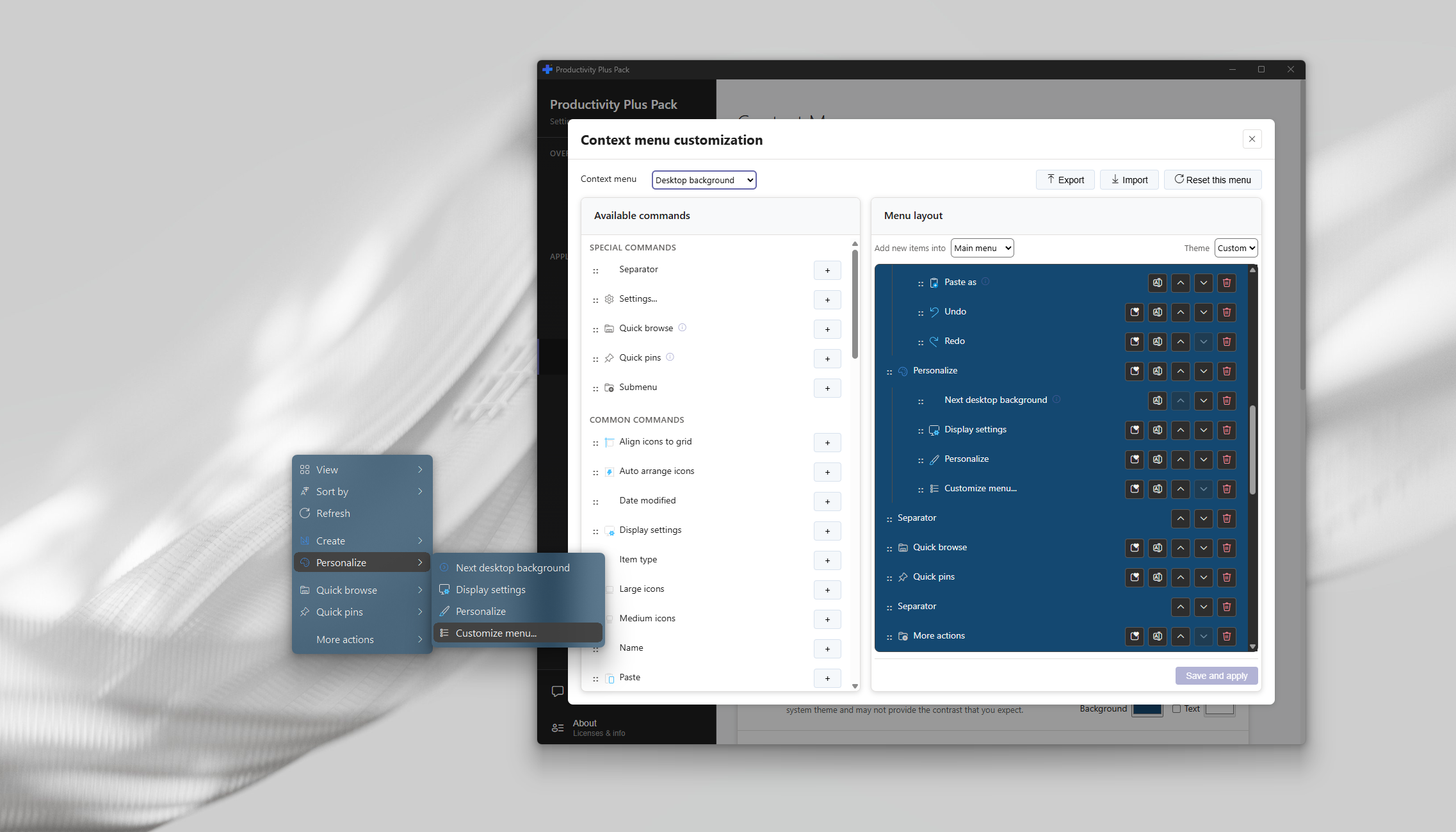
Use what's built into Windows, the tools you already have, or Productivity Plus Pack — they work well together.
Select Show more options at the bottom of the menu, or press Shift+F10, to open the full classic menu for that one right-click.
PowerToys adds useful right-click entries such as PowerRename and Image Resizer. Context Menu+ lets you decide which of them show up.
Context Menu+ makes your choice permanent, removes the entries you don't need, and lets you design each menu — even for the Start button and taskbar. Commands+ adds your own commands.
More about Context Menu+ · Full Context Menu+ guide · Read: The Complete Guide to the Windows 11 Right-Click Menu · More how-to guides
No. You switch between the classic and modern menu in the Settings app, and you can switch back at any time.
Yes. Turn off individual entries from any app in the Modern and Classic sections of Context Menu+ in Settings, then restart Explorer.
Yes. Custom right-click commands - with names, icons, variables, prompts and hotkeys - are managed under Commands+ in Settings.
Try every feature free for 30 days, no account or credit card needed. After the trial, choose a one-time payment for the direct download or a monthly subscription for the Microsoft Store edition.
