Start every project with the same useful structure.
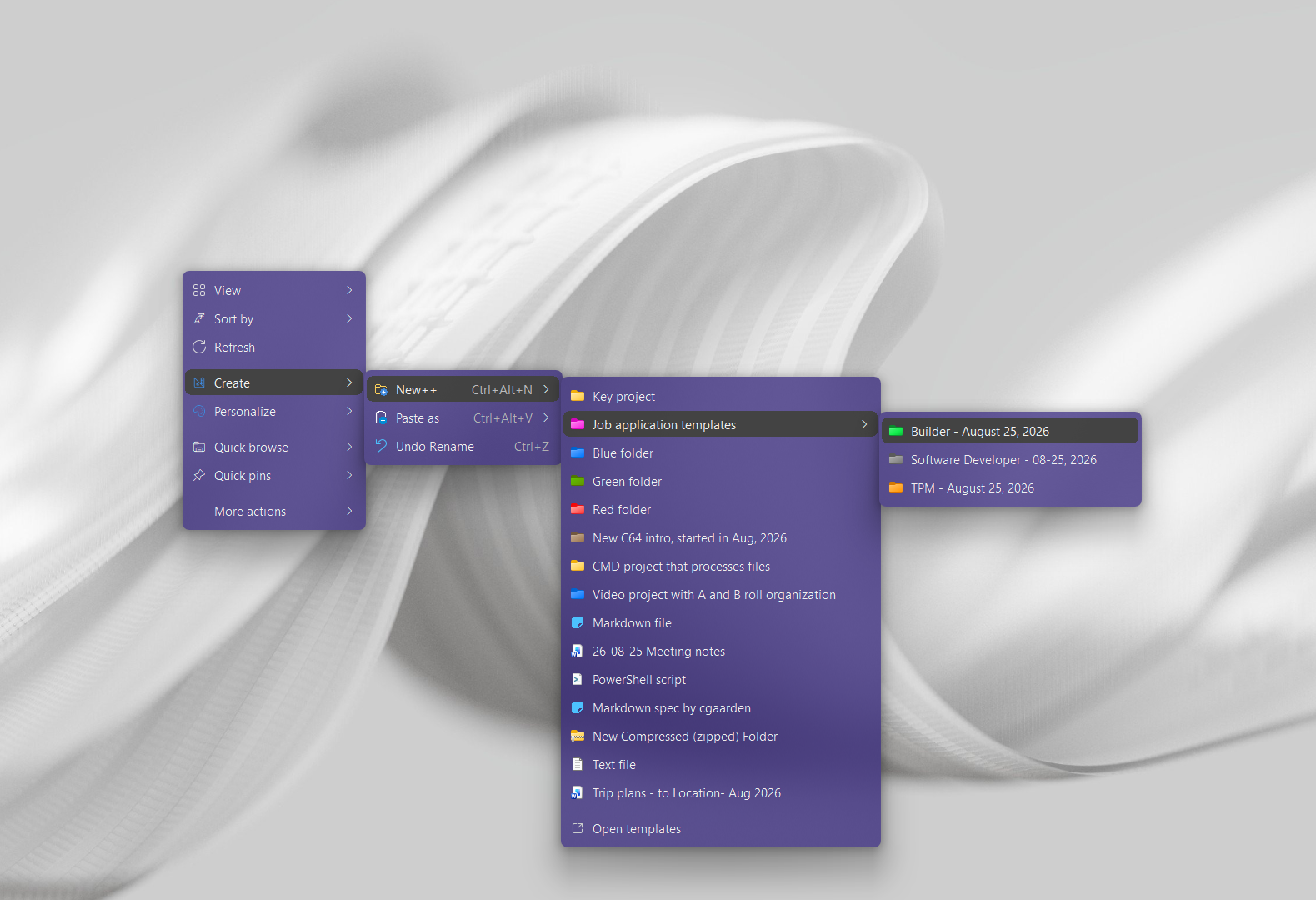
Quick answer: Windows can duplicate an existing folder structure with copy and paste. To keep a reusable project starter in your right-click menu, place a folder with its starter files inside the New++ templates folder. Select it from New++ in the destination folder to create the project folder and its contents together.
For a client project, a simple starter could contain Documents and Deliverables subfolders plus a brief.txt file. Keep only the structure and reusable instructions in the template.
Use a normal folder template when you want a new parent folder. New++ also has a separate option for creating only its contents.
Use what's built into Windows, the tools you already have, or Productivity Plus Pack — they work well together.
Copy an existing starter folder to each destination manually.
Keep a reusable folder structure in the templates menu, including its documents and subfolders.
Use $set in the template folder name, or hold Ctrl when choosing it, to create its sub-items without the parent folder.
More about New++ · Full New++ guide · More how-to guides
New++ can move selected items into the new folder when that option is enabled. Start with no files selected if you only want the starter structure.
Yes. Use $group for a folder that should act as a group of templates; see the New++ guide.
Yes. See how to create a file from a template.
Use this idea in a real-world workflow.
Start a client project from a template, distinguish working files from deliverables, and keep feedback and frequently used commands close to the files.
Try every feature free for 30 days, no account or credit card needed. After the trial, choose a one-time payment for the direct download or a monthly subscription for the Microsoft Store edition.
