Make your important folders easy to spot at a glance.
Quick answer: For a folder, open Properties > Customize > Change Icon and pick an icon. Windows doesn't let you change the icon of an individual file. With Icon+ from Productivity Plus Pack, right-click any file or folder, choose the icon option and pick a new icon — the same menu restores the original.
When every folder looks the same, the important ones get lost. Windows lets you change a folder's icon through a few dialogs — but not the icon of an individual file.
Icon+ from Productivity Plus Pack lets you set a custom icon on any folder or file straight from the right-click menu.
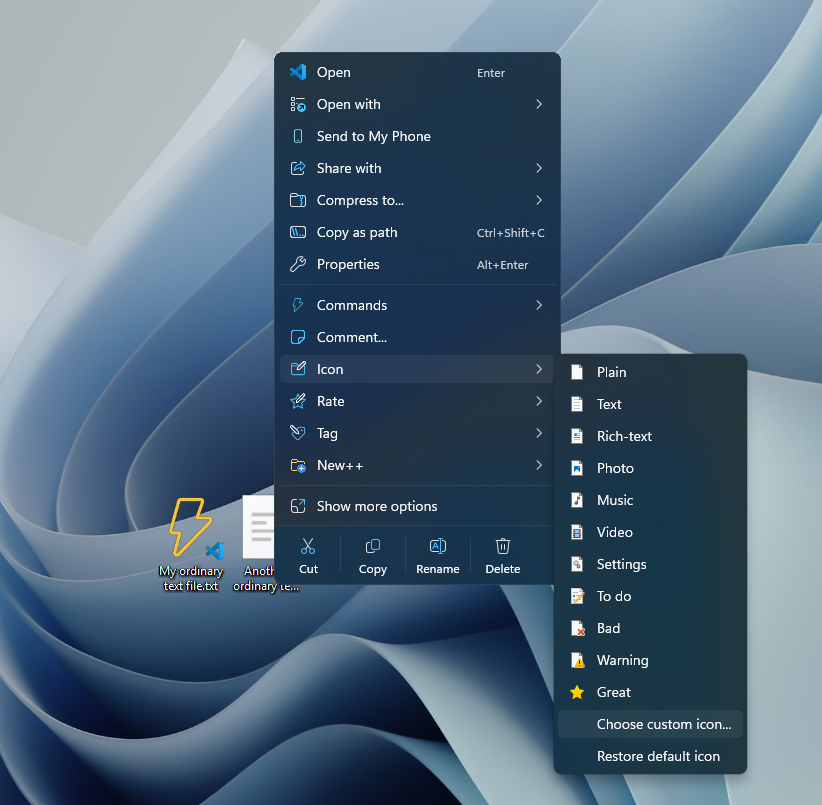
Use what's built into Windows, the tools you already have, or Productivity Plus Pack — they work well together.
For a folder, open Properties > Customize > Change Icon and pick an icon.
Icon+ works on files as well as folders, right from the right-click menu, with a one-click reset.
Custom folder icons follow your folders across devices through OneDrive, usually within a minute or so of syncing.
More about Icon+ · Full Icon+ guide · Read: The Complete Guide to the Windows 11 Right-Click Menu · More how-to guides
Yes. Icon+ works on individual files as well as folders.
Yes. The Tag+ and Rate+ overlays sit on top of the custom icon or thumbnail.
No. Icons are generated and cached, so folders stay fast even with many customized items.
Try every feature free for 30 days, no account or credit card needed. After the trial, choose a one-time payment for the direct download or a monthly subscription for the Microsoft Store edition.
