Personalize your files and folders so important items are easy to spot.
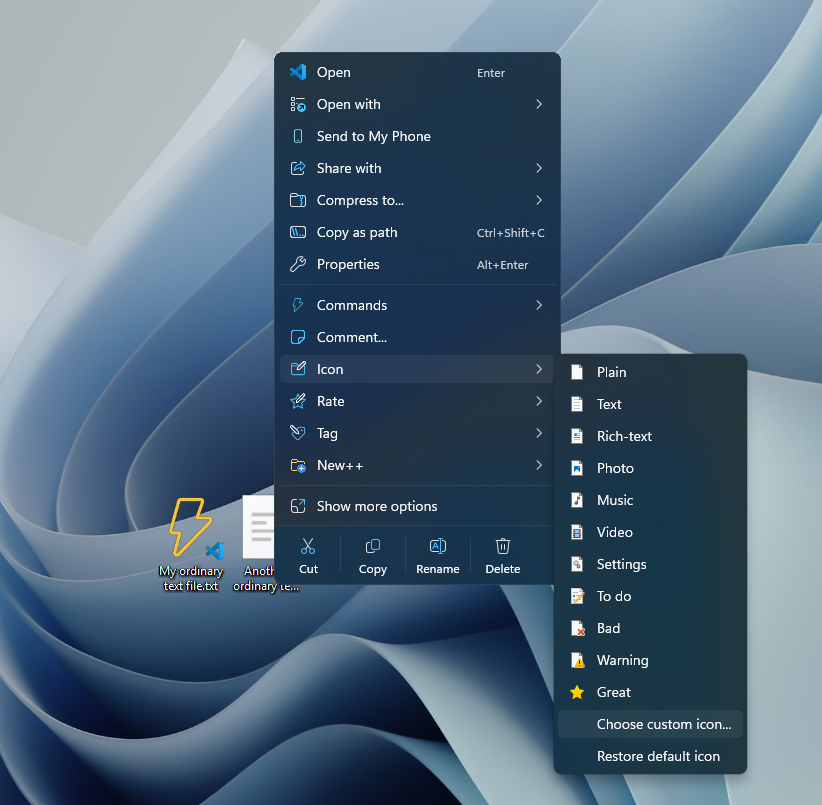
Right-click any file or folder in Windows Explorer and choose the icon option from the context menu to give it a distinctive, custom icon.
If you use Tag+ and Rate+, your tags and star ratings show up as small overlays right on the icon or thumbnail — so you can spot tagged or highly-rated items at a glance without opening them. See the Tag+ and Rate+ guides for details.
Use the same context menu option and choose the default/reset entry to restore the original system icon for a file or folder.
On the Icon+ page in Settings, you can have File Explorer show image thumbnails and icons with rounded corners.
If you don't use custom icons, turn off the icon options in the right-click menu on the Icon+ page in Settings.
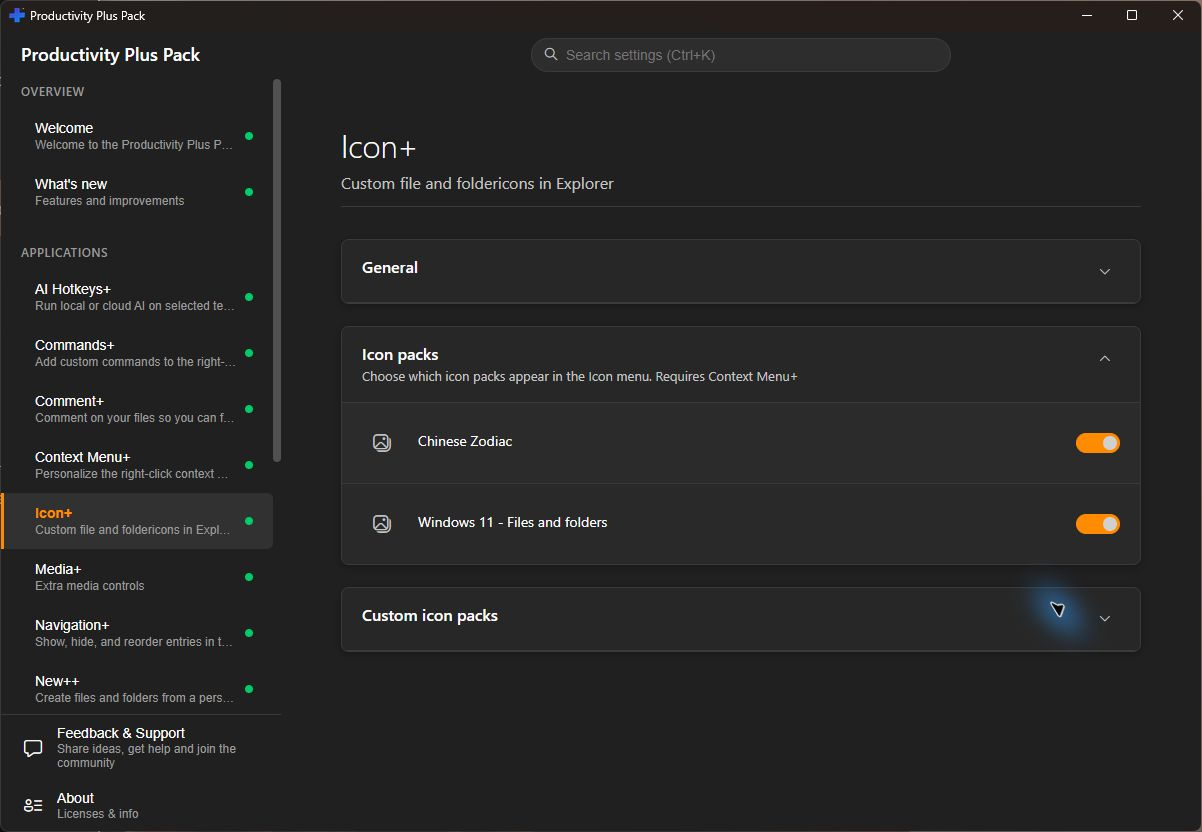
Choose from Windows 11 - Files and folders and Chinese Zodiac. Turn individual packs on or off in Icon+ Settings so the Icon menu contains the collections you want. Pack menus require Context Menu+.
Set Icon Location in Icon+ Settings and add folders of .ico files. Each folder becomes a group in the Icon menu; folders inside it become nested groups. This makes a personal collection or a matching set of project icons easy to reuse. Requires Context Menu+.