Every photo of the people who matter — found on your own PC, privately.
Quick answer: File Explorer can show and search names that are already saved in your photos. To find photos of people who aren't named yet, turn on People+ in Productivity Plus Pack: it recognizes faces on your own PC, lets you name each person, and writes the names into the photos, so searching File Explorer for a name finds them.
Years of photos spread across folders, and you want the ones with you in them — or your mom, or your best friend. Scrolling through them all isn't realistic.
People+ from Productivity Plus Pack recognizes faces with AI that runs entirely on your PC, lets you name each person, and writes the names into your photos so you can search for them in File Explorer.
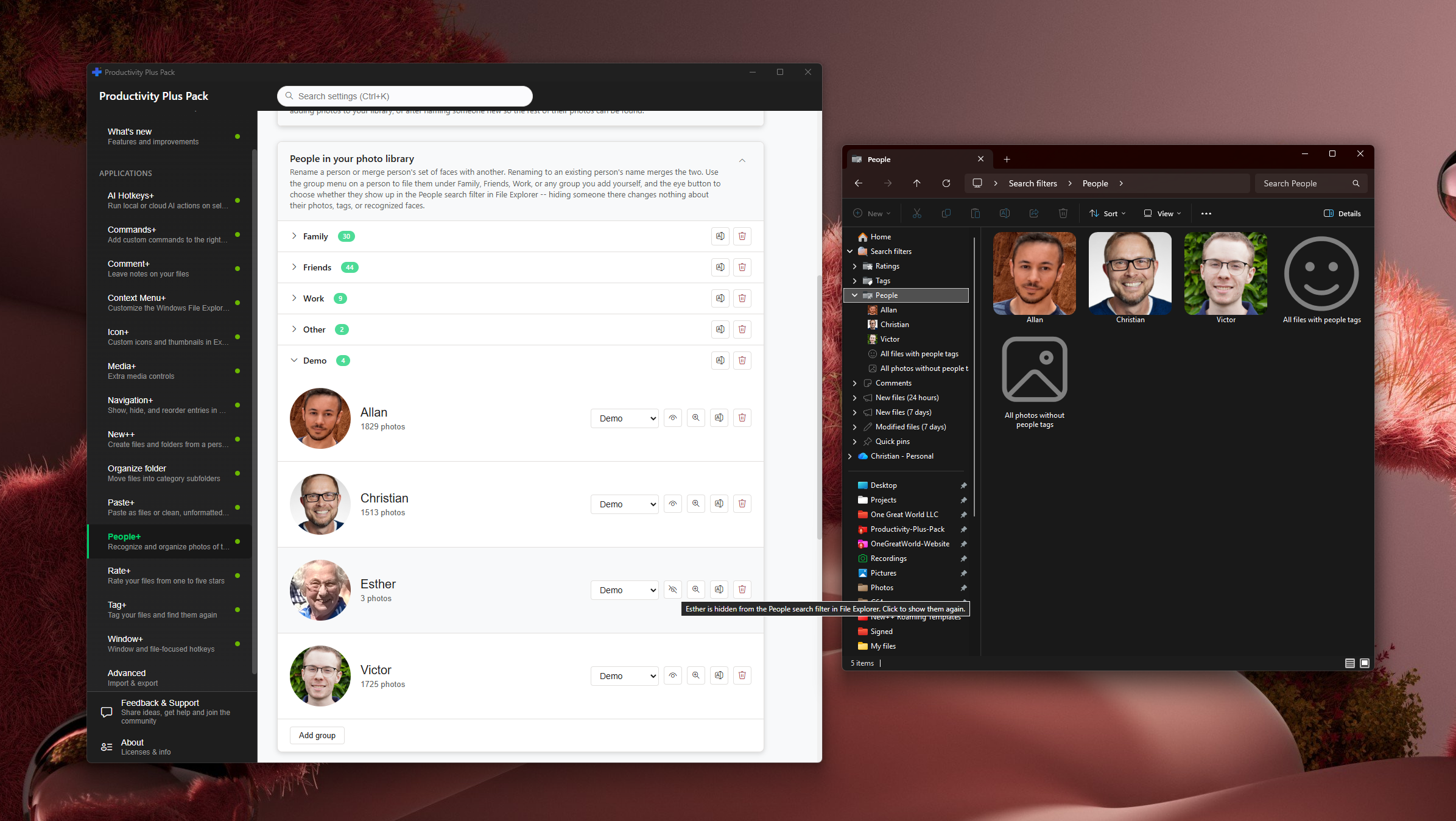
Use what's built into Windows, the tools you already have, or Productivity Plus Pack — they work well together.
File Explorer's People column shows names already saved inside your photos.
People+ can import names that Windows Photos, Picasa or Lightroom already saved in your photos, and use them to recognize the same people elsewhere.
More about People+ · Full People+ guide · Read: How to Automatically Tag Files Using AI · Read: How to Organize Photos on Your PC · More how-to guides
No. Face detection, matching and grouping run locally on your PC. Your photos and face data are not uploaded to a recognition service.
Confirm, reject or reassign any face at any time. Lower-confidence matches are left for you to review rather than assigned automatically.
Yes. Forget one person or delete all locally stored face data from the People+ page.
Use this idea in a real-world workflow.
Name family members, tag occasions and rate favorites so you can find the best photos of a person across different events and years.
Try every feature free for 30 days, no account or credit card needed. After the trial, choose a one-time payment for the direct download or a monthly subscription for the Microsoft Store edition.
