Keep your notes, a video or a calculator in view while you work.
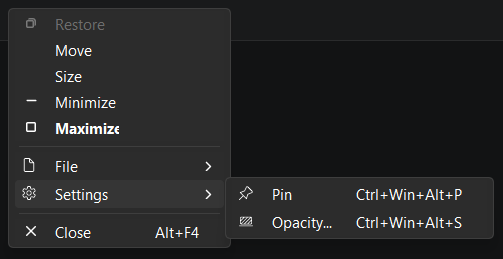
Quick answer: Windows has no always-on-top switch for every app — only some apps, such as Task Manager, have their own. PowerToys Always On Top pins the active window with Win+Ctrl+T. With Window+ from Productivity Plus Pack, press Ctrl+Win+Alt+P to pin a window and Ctrl+Win+Alt+S to make it see-through; it remembers both per app.
Following a tutorial, keeping an eye on a chat, or copying numbers from one window to another — sometimes you need one window to stay in front of everything else.
Window+ from Productivity Plus Pack pins any window on top with a shortcut, lets you make it partly transparent, and remembers both for each app.
Use what's built into Windows, the tools you already have, or Productivity Plus Pack — they work well together.
Some apps, such as Task Manager, have their own Always on top option.
PowerToys Always On Top pins the active window with Win+Ctrl+T.
Window+ adds transparency, remembers your settings per app, and can set rules for specific apps — or exclude them.
More about Window+ · Full Window+ guide · More how-to guides
Yes. Window+ remembers pin and transparency settings per application and restores them automatically.
Yes. Use whichever you prefer, or turn Window+ off in Settings.
Show the file a window has open in File Explorer (Ctrl+Win+Alt+E), comment on it, copy its link, and remember a window's position and size.
Try every feature free for 30 days, no account or credit card needed. After the trial, choose a one-time payment for the direct download or a monthly subscription for the Microsoft Store edition.
