One shortcut, every app — mute your mic without hunting for the meeting window.
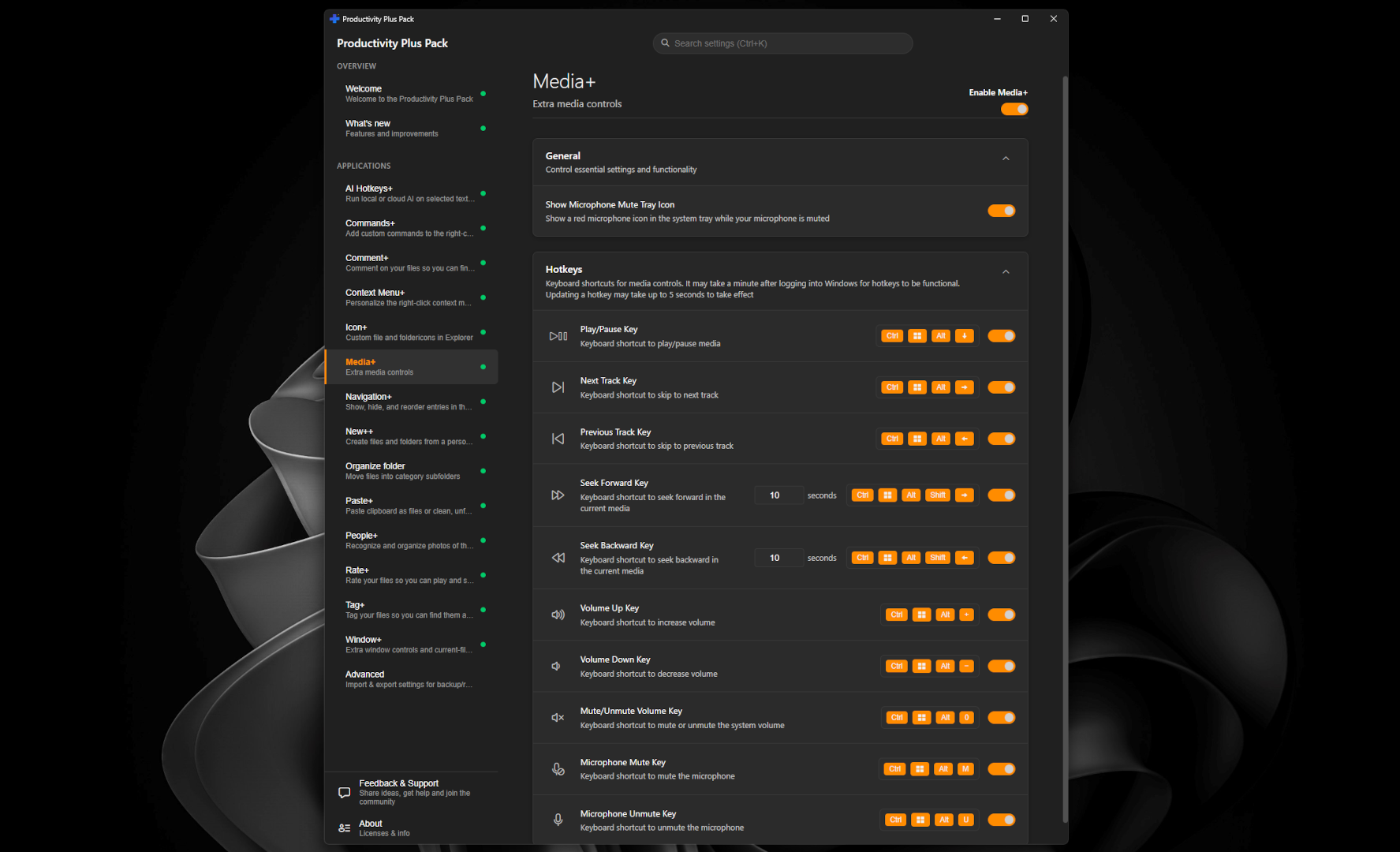
Quick answer: In Windows 11, Win+Alt+K mutes you in calling apps that support it, such as Microsoft Teams. For a shortcut that mutes the microphone in Windows itself, from any app, use Media+ from Productivity Plus Pack: Ctrl+Win+Alt+M mutes and Ctrl+Win+Alt+U unmutes, with an on-screen indicator. Both shortcuts can be changed.
You're in a call, you've switched to another window, and you need to mute — now. Teams, Zoom and Discord have their own mute shortcuts, but they often only work while that app's window is in front.
Media+ from Productivity Plus Pack mutes your microphone in Windows itself, with a shortcut that works from any app.
Use what's built into Windows, the tools you already have, or Productivity Plus Pack — they work well together.
In Windows 11, Win+Alt+K mutes you in calling apps that support it, such as Microsoft Teams.
Most meeting apps have their own mute shortcut — great while the meeting window is in front.
Media+ mutes your default microphone in Windows, so every app using it is muted — plus global keys for play, pause, skip and volume.
More about Media+ · Full Media+ guide · More how-to guides
Yes. Media+ mutes your default microphone in Windows itself, so every app that uses that microphone is muted, whichever app it is.
Yes. Set your own mute and unmute shortcuts in Settings under Media+. If another program already uses a combination, Settings tells you so you can pick another.
Yes. Media+ can be turned on or off in Settings if you prefer another tool for media or microphone control.
Try every feature free for 30 days, no account or credit card needed. After the trial, choose a one-time payment for the direct download or a monthly subscription for the Microsoft Store edition.
