One right-click sorts the clutter — and one more puts it back if you change your mind.
Quick answer: File Explorer can sort or group a folder's view without moving files. To tidy the folder, choose Organize folder > By file type with Productivity Plus Pack. Loose files move into category subfolders such as Images and Documents. Existing subfolders stay in place, and Undo last organize can reverse the last operation.
Downloads, Desktop, a project folder that grew out of control — sorting hundreds of loose files by hand takes ages.
Organize Folder from Productivity Plus Pack sorts the files in a folder into subfolders like Images, Documents, Videos, Music, Archives and Programs with a single right-click. For photos, it can file them by date and place instead.
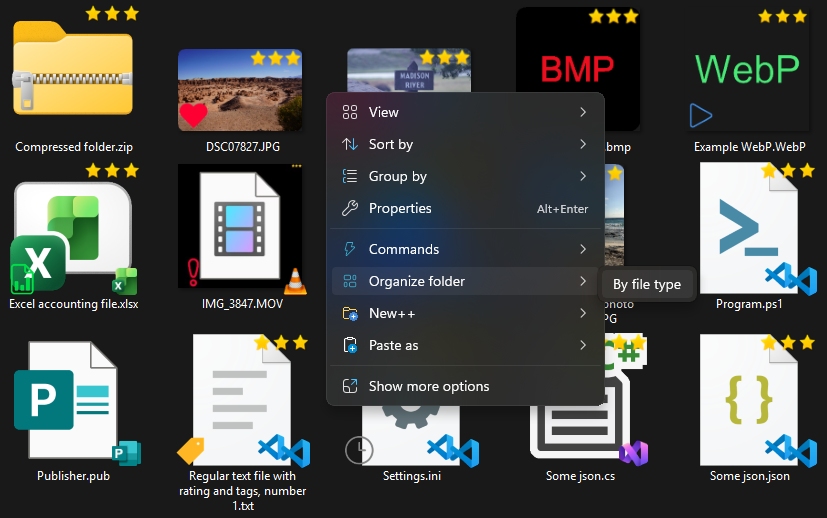
Use what's built into Windows, the tools you already have, or Productivity Plus Pack — they work well together.
File Explorer can sort and group a folder's view by type or date — handy for browsing, though the files themselves stay where they are.
Organize Folder actually moves the files into subfolders, and you choose which file types go where in Settings.
The Photos option names photos like "Date - Location - People - Original Filename" and files them into Date\Location folders, using the photo's date and GPS location. Both patterns can be changed in Settings.
More about Organize Folder · Full Organize Folder guide · Read: How to Organize Photos on Your PC · Read: The Complete Guide to the Windows 11 Right-Click Menu · More how-to guides
They're left completely alone. Only the loose files directly inside the folder you organize are sorted, and nothing inside subfolders is touched.
Yes. Right-click the folder again and choose Undo last organize to move everything back to where it was.
Yes. In Settings you choose how file types are grouped into subfolders, and you can turn the right-click entry off if you don't need it.
Try every feature free for 30 days, no account or credit card needed. After the trial, choose a one-time payment for the direct download or a monthly subscription for the Microsoft Store edition.
