Clean up a messy folder in one click.
Choose Organize folder > Photos. The default filename includes date, location, people and the original filename; the default placement is a Date\Location folder structure. Review both patterns in Settings > Organize Folder. GPS place names are resolved offline; missing GPS data means no GPS-derived location. People names come from photo metadata, not a new recognition pass. Try the workflow on a sample folder.
Right-click a folder (or right-click empty space inside it) and choose Organize folder > By file type. The files directly inside that folder are sorted into category subfolders like Images, Documents, Videos, Music, Archives, and Programs.
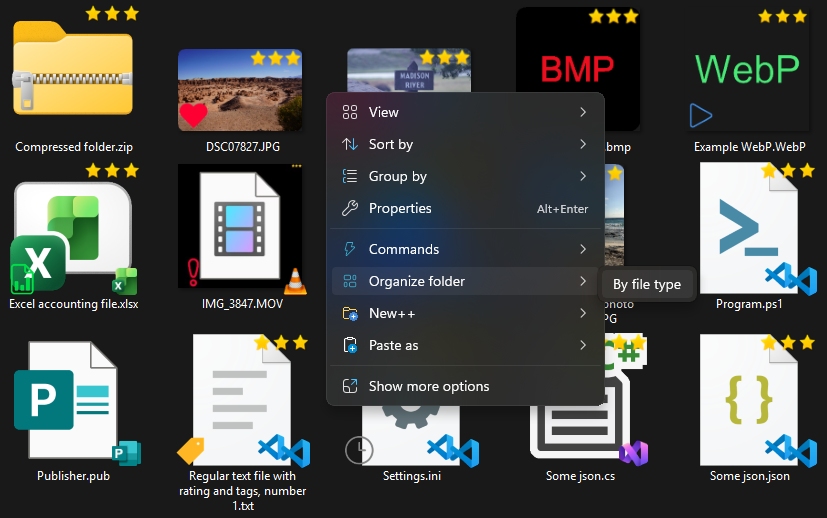
Existing subfolders, shortcuts, hidden and system files, and files needed by Windows or Productivity Plus Pack itself are never moved — only your top-level files are sorted, and nothing is touched recursively inside subfolders.
Right-click the folder again and choose Undo last organize to reverse the previous operation. Check the result if files have since been moved, changed or replaced. This option only appears after you've organized that folder at least once.
If you don't want the Organize folder entry in your context menu, you can turn it off in the Settings app.
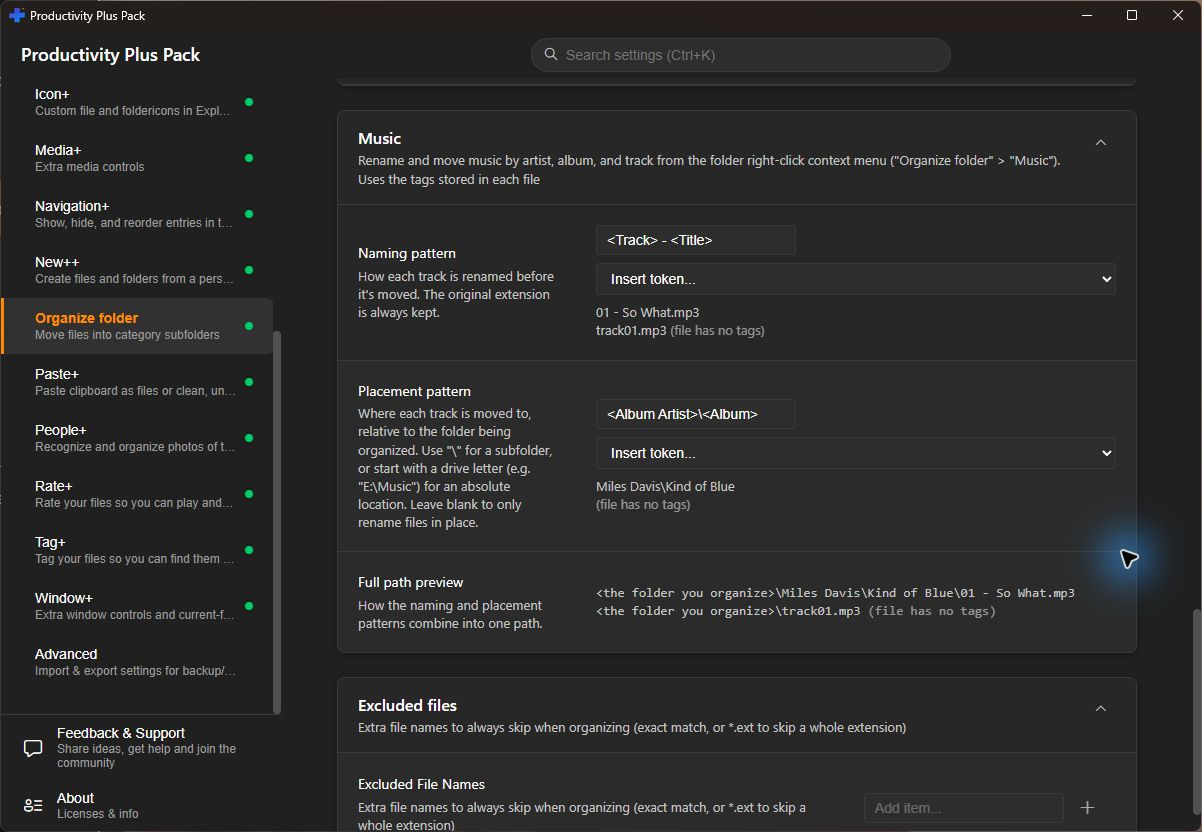
Yes. Choose Organize folder > Music to rename and arrange supported audio files using their metadata. Set separate naming and placement patterns in Settings, using fields such as artist, album artist, album, track number, title, disc, year and genre.
Open Organize Folder in Settings and edit the Music naming and placement patterns. The defaults use album artist and album for folders, then track number and title for filenames. Review the preview, especially for files with incomplete metadata.