Copy it, right-click the folder, done — no image editor needed.
Quick answer: Copy the image, or take a screenshot with Win+Shift+S. Then right-click an empty spot in the folder, choose Paste as — or press Ctrl+Alt+V — and pick PNG or JPG with Paste+ from Productivity Plus Pack. Without extra tools, paste into Paint and use Save As, or let Snipping Tool save screenshots to Pictures\Screenshots automatically.
You take a screenshot with Win+Shift+S, or copy an image from a web page, and now you want it as a file in a specific folder. Usually that means opening Paint, pasting, and clicking through Save As.
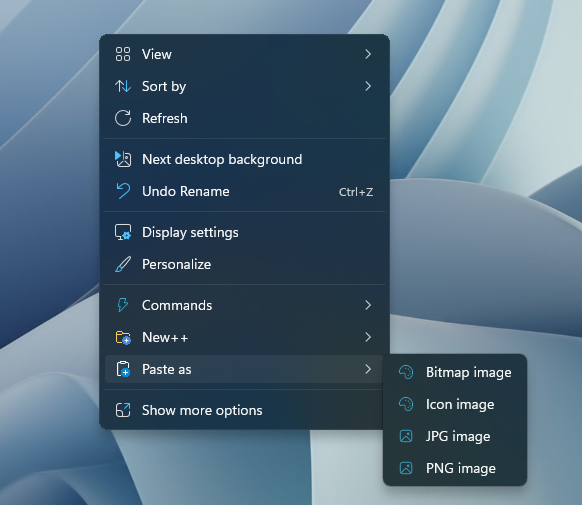
With Paste as from Productivity Plus Pack, you save the clipboard image straight into the folder as a PNG or JPG file — right from File Explorer.
Use what's built into Windows, the tools you already have, or Productivity Plus Pack — they work well together.
Snipping Tool can save your screenshots automatically to Pictures\Screenshots, and Win+PrtScn saves a full-screen screenshot there. Perfect when that folder is where you want them.
Advanced Paste can paste a copied image into a folder as a .png file.
Paste as works from the right-click menu in any folder, offers PNG, JPG, Bitmap and Icon, and also turns copied text and links into files, URL shortcuts and QR codes.
More about Paste+ · Full Paste+ guide · Read: The Complete Guide to the Windows 11 Right-Click Menu · More how-to guides
Yes. Save text as an HTML, Markdown or plain text file, and turn a copied link into a URL shortcut, a file shortcut or a URL QR code.
Paste as offers combined options, such as HTML with the image, Markdown with the image, or a text file - handy for content copied from OneNote or a web page.
Yes. Change or turn off the shortcut in the Paste as section of the Paste+ page in Settings.
Try every feature free for 30 days, no account or credit card needed. After the trial, choose a one-time payment for the direct download or a monthly subscription for the Microsoft Store edition.
