Make File Explorer's navigation pane match the way you work.
Open Settings and select Navigation+. Use the visibility switch beside an entry to show or hide it in File Explorer's navigation pane. Some Windows-managed entries require administrator approval before they can be changed.
Move supported entries between the Top, Upper, Lower, and Bottom navigation zones. Windows controls the placement of some built-in or provider-managed entries, so not every item can be moved to every location.
Select the rename control beside a supported entry, enter the new display name, and save. Explorer may restart so the new name appears everywhere.
Use Refresh if the list does not reflect a recent Windows or application change. If an applied change has not appeared in open Explorer windows, use Restart Explorer from the Navigation+ page.
Use Restore defaults to return navigation entries managed by Navigation+ to their default names, visibility, and positions. Review the confirmation carefully before applying it.
Use the Starting location section at the top of the Navigation+ page to choose where new File Explorer windows open.
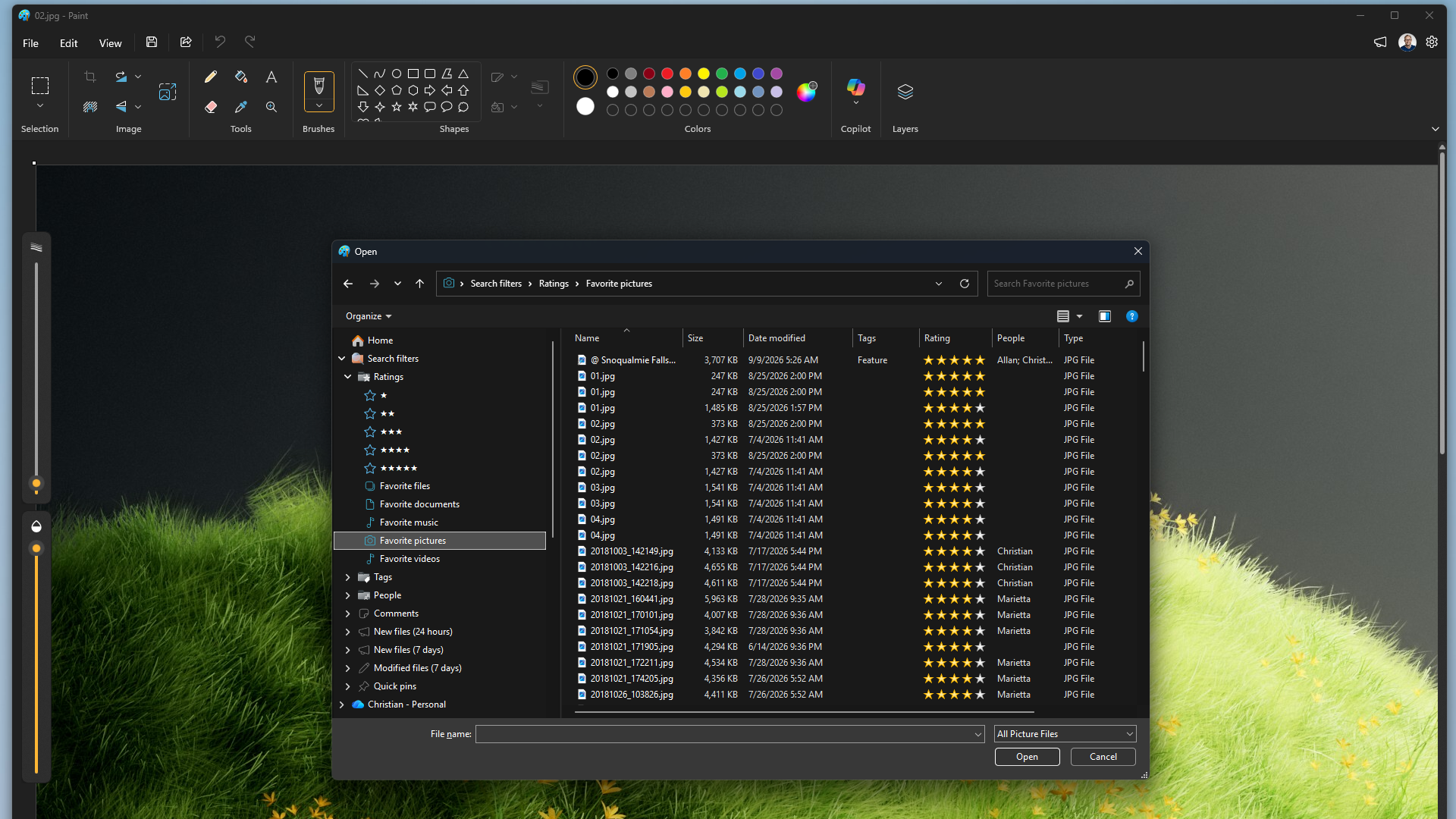
The Search filters section on the Navigation+ page controls the Search filters section in File Explorer's navigation pane, where your tag and rating filters live: show or hide this section, and add, reorder, rename or build filters. See Finding tagged files for the details.