Put the commands you use - at your fingertips.
Quick answer: Windows 11 offers a limited right click menu customization. With Productivity Plus Pack you get a complete visual drag and drop editor enabling your to fully customize your context menus. You get access to ALL Windows context menu capabilties, and you can remove items, add your own items/commands and submenus, rename and changes icons. You can even change the font and colors and so much more.
Start with one menu you use every day, such as the menu for files or the desktop. Then add and remove items and simply have fun building your own menu.
Context Menu+ enables you to completely change menu layouts and Commands+ enables your to add your own commands.
You also get access to Quick browse and Quick pins. Try them out.
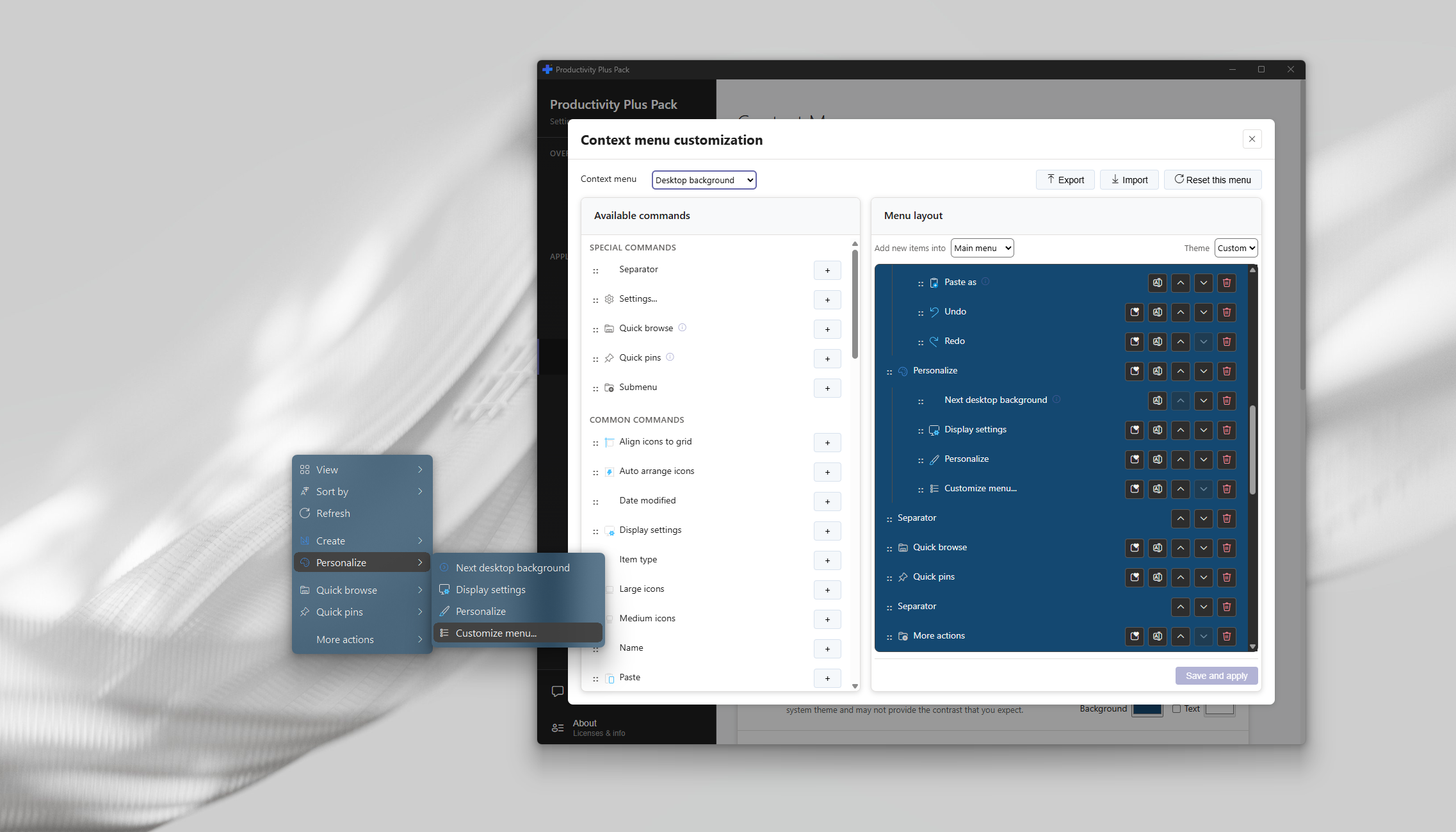
Use what's built into Windows, the tools you already have, or Productivity Plus Pack — they work well together.
Show more options opens the classic menu for the current selection. It does not let you rearrange commands.
Edit layouts for files, file types, folders, drives, the desktop, Recycle Bin, Start and the taskbar.
Use Commands+ to define a program or script, then arrange it with your other commands.
More about Context Menu+ · Full Context Menu+ guide · More how-to guides
No. Different menu locations have fully customizable and separate layouts.
Yes. You can save your layouts and also export them to then later import on another computer or share with a friend.
Yes. See how to get the classic right-click menu back if you only want to switch menu styles.
Use this idea in a real-world workflow.
Start a client project from a template, distinguish working files from deliverables, and keep feedback and frequently used commands close to the files.
Try every feature free for 30 days, no account or credit card needed. After the trial, choose a one-time payment for the direct download or a monthly subscription for the Microsoft Store edition.
