Search by what a file is about — not just what it's called.
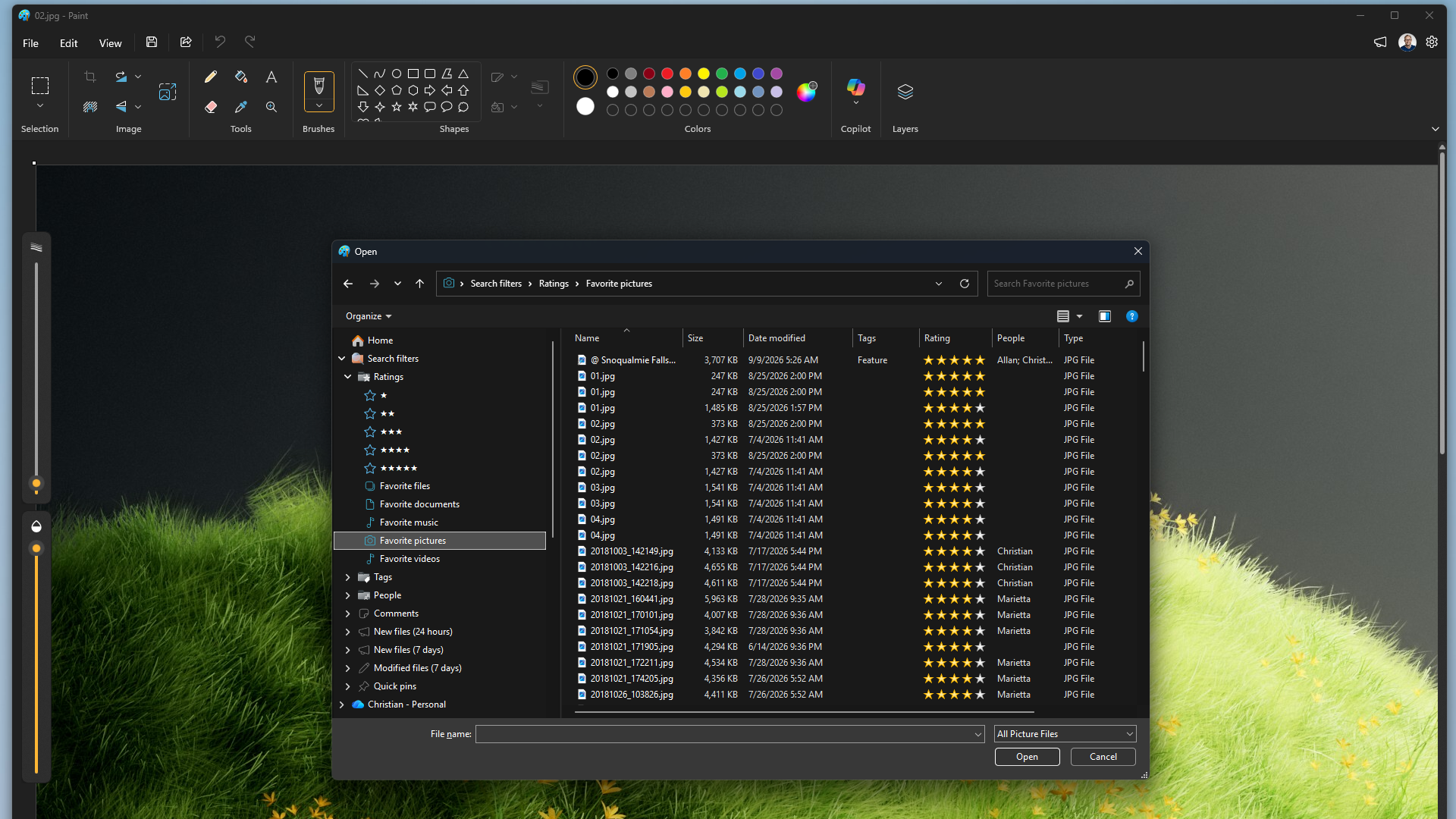
Quick answer: Type a property search in File Explorer's search box, such as tags:invoice, kind:=picture, datemodified:this week or size:>100MB. Windows Search answers from its index. Productivity Plus Pack adds tags and ratings to many more file types and lets you save searches like these as one-click filters in the navigation pane, built with a visual query builder.
File names only get you so far. Windows keeps a lot of information about your files — dates, size, type, and tags and ratings where they exist — and you can search on all of it.
Tag+ and Rate+ from Productivity Plus Pack add tags and ratings to many more file types, and let you save metadata searches as one-click filters in File Explorer.
Use what's built into Windows, the tools you already have, or Productivity Plus Pack — they work well together.
File Explorer's search box understands property searches like kind:, datemodified:, size: and tags:, and you can add columns such as Tags and Rating to any folder view.
Productivity Plus Pack saves your searches as filters in the navigation pane, built with a visual query builder and backed by Windows Search.
More about Tag+ · Full Tag+ guide · Read: Which Files Can You Tag and Rate with Productivity Plus Pack? · Read: How to Tag PDFs, Documents and More in Windows · Read: Folders vs Tags: Which Is Better for Organizing Files? · Read: Why Windows Search Isn't Finding Your Files - and How to Fix It · More how-to guides
Tag, Rating, Person, File name, Folder, File extension, File size, Date modified, Date created and Item type - combined with AND or OR.
Searches and filters use Windows Search, so they only include files in locations Windows Search indexes.
Yes. Comment+ saves comments to the file's Comments property, so they show up in Explorer's Comments column and in search.
Use this idea in a real-world workflow.
Keep contracts, amendments and correspondence together, record document status and notes, and find the signed files again in File Explorer.
Collect research PDFs, review AI-assisted topic tags, record why sources matter and find relevant papers with tags, ratings and Explorer filters.
Try every feature free for 30 days, no account or credit card needed. After the trial, choose a one-time payment for the direct download or a monthly subscription for the Microsoft Store edition.
